Employee communication is critical when rolling out any technology. After all, if employees aren't informed about what's available, bought in about how it can help them, and comfortable using it, they probably won't adopt it.
Here are some ways AI in Zoom Workplace can help you be more efficient in your work:
- During meetings, capture feedback and discussion points, ask in-meeting questions about what's been said, or even ask questions for web search.
- After you've been out of the office, summarize your unread chats, get a list of action items based on a conversation in a chat channel, or summarize an email thread.
- Instead of staring at a blank page, prompt AI for a first draft, for a summary of a document you upload, or change the tone of your existing draft.
Here's an example template email for introducing AI features to your team. Before you send it, make sure you edit it to reflect which AI features you choose or which Zoom products you're licensed for:
–
Dear [employees],
We're excited to announce that AI features in Zoom Workplace, Zoom's generative AI capabilities, are now available for you to use on Zoom.
AI in Zoom Workplace has a number of capabilities designed to help you throughout your workday to help enhance productivity and collaboration. It can:
- Summarize Zoom Meetings, giving you a recap of what happened and action items, even without recording the meeting. It can also summarize lengthy Zoom Chat threads, helping you save time with a synopsis of the conversation.
- Create an agenda for your upcoming meeting. Based on past meetings or chat threads, ask AI to create an agenda for your next meeting.
- Summarize uploaded documents. In the AI chat, upload a PDF, Microsoft Office file, or a Google Doc and ask AI to summarize important information from it.
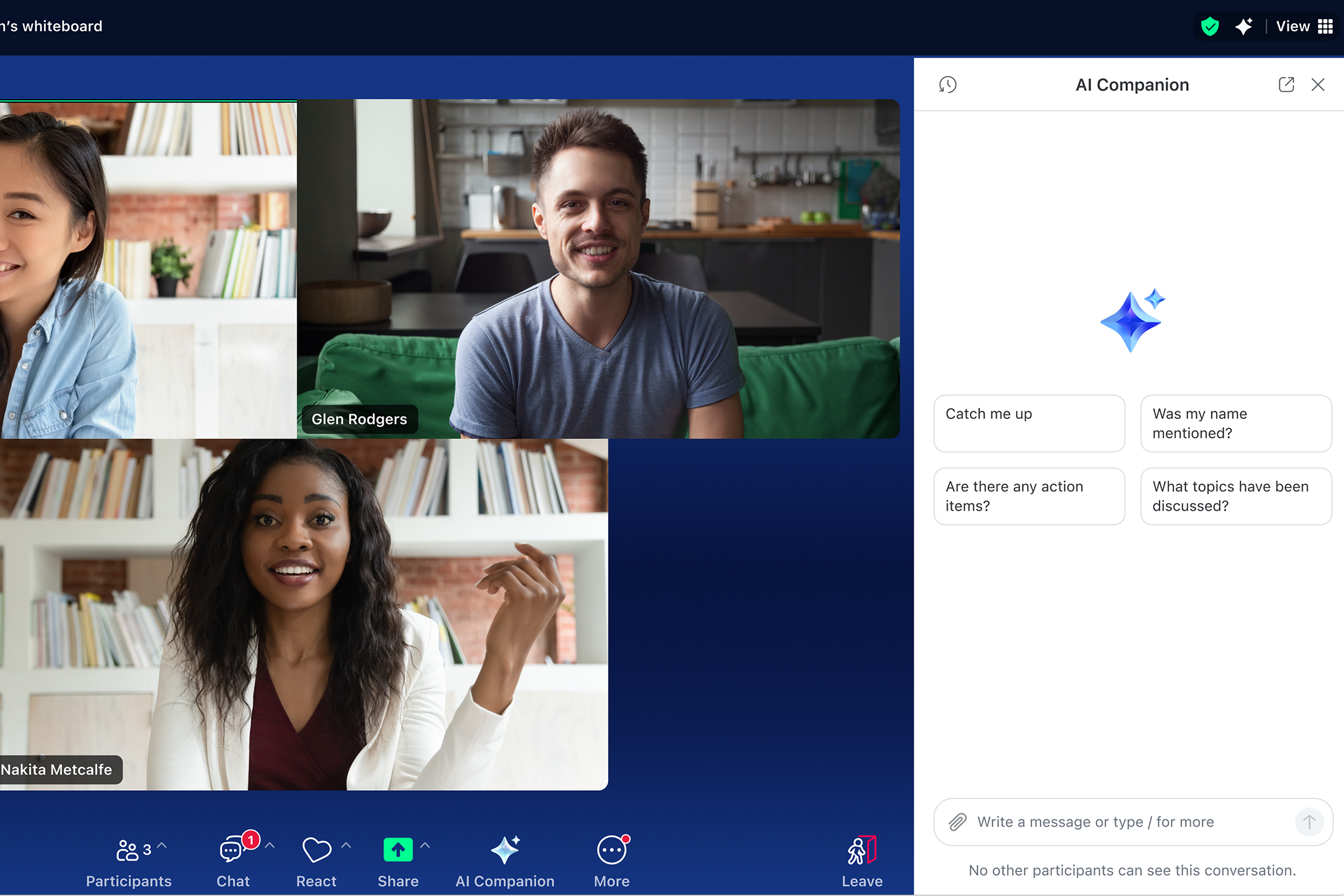
- Answer questions you have about a meeting in real time — like "Was my name mentioned?" or "What are next steps?"
- Compose Zoom Chat messages and Zoom Mail emails with the appropriate tone and length. All you have to do is provide a prompt.
- Make recordings easier to review by dividing them into smart chapters by topic, highlighting important info, and identifying action items.
- Generate ideas in Zoom Canvas and Zoom Whiteboard based on your prompt, helping you kick-start brainstorming sessions or new drafts of content.
Here are some common questions you might have:
Can I choose whether to use AI features?
You can manage which AI capabilities you want to use in Zoom Meetings you host. You can turn these capabilities on or off in your profile settings, and you can choose whether or not to use them in your Zoom Meetings on a case-by-case basis. You can also choose when to turn AI features on or off while your Zoom meeting is in progress, including, if on a supported client version, turning off certain features activated by other meeting participants. The AI icon will be visible in the top-right corner of your window if AI features are active during a meeting. If you join a Zoom meeting where AI capabilities are being used, a notice will be provided.
Will my meeting conversations be used to train AI models?
Zoom does not use any customer audio, video, chat, screen sharing, attachments, or other communications-like customer content (such as poll results, whiteboard, and reactions) to train Zoom's or its third-party artificial intelligence models.
How do I get started?
Look for the AI icon while you're using Zoom Workplace—in your Meetings toolbar, Zoom Chat, Mail, or Zoom Whiteboard.
If you have questions or concerns, contact us at [COMPANY][DEPARTMENT].
___
Tips for driving adoption
After you've introduced AI features, follow these tips to drive adoption and help your employees learn how to use them effectively:
- Set up training sessions and virtual office hours via Zoom Meetings to help employees turn on AI features and answer questions they may have.
- Create a Zoom Chat channel dedicated to AI features so your employees can ask questions or share their own tips and best practices with each other.
- Create a committee of power users or AI enthusiasts to help employees, test new capabilities, or hold training sessions of their own, depending on their level of engagement.
Employee resources
Employees learn and engage in different ways, and we have a variety of AI resources available that you can share with them.







 7 min read