
Zoom Webinars

Measuring what matters to make every call, app, and AI interaction dependable
Read how dependable performance turns everyday communication into effortless connection.
 5 min read
Published on December 20, 2023



More and more, organizations view AI as an imperative technology for employees rather than a nice-to-have. As an IT leader, you're at the forefront of this wave of digital transformation, tasked with bringing the right technology to help employees collaborate and communicate effectively.
With so many AI solutions available, your team might be overwhelmed by evaluating and testing different tools based on factors such as cost, quality, integrations, and security and privacy. Finding a trusted and effective solution takes time. But moving too slowly can come with its own pitfalls. If eager employees aren't provided with approved AI tools, they might start using unvetted apps for their work, and you won't know how company data is being handled or whether it's being used to train third-party AI models. And they won't gain the productivity gains that AI can provide.
You may also be juggling how to incorporate AI into your existing workflows, onboard users, and communicate the value of AI so employees use it.
Enter Zoom AI, part of the Zoom Workplace platform you trust, and the collaboration experience your employees already know and love — an easy way to summarize meetings and chat threads, compose messages in Zoom Chat and email, and brainstorm and organize ideas on a whiteboard or a Zoom Doc.
Whether you're actively considering Zoom AI or looking for guidance on implementing it effectively, we've outlined the information you need below. If you're new to AI in Zoom Workplace, learn what it can do for your team.
Rigorous evaluation of any application is essential to help keep company data secure and reduce potential risks. Zoom's strong culture of care, which prioritizes security and privacy at the center of its products, is a key factor in our commitment to responsible AI. If your organization already uses Zoom, you're likely familiar with how we prioritize security, privacy, and compliance across the Zoom Workplace platform.
Most importantly, Zoom does not use any of our customers' audio, video, chat, screen sharing, attachments, or other communications, such as customer content (such as poll results, whiteboard, and reactions), to train Zoom's or our third-party artificial intelligence models.
If you're not familiar with Zoom's security and privacy practices, our Security and Privacy White Paper provides a detailed look at our product features and approach to responsible AI, answering many questions you may have while evaluating our AI solutions.
For information on:
Administrators may enable or disable features for their entire account within the account settings page in the Admin Portal. You can choose whether to provide all employees or just certain groups with access to certain features (requires version 6.2.5 and above).
It's not an all-or-nothing choice — for instance, you may want employees to be able to summarize meetings but wait to roll out certain features to employees, like email or Zoom Chat compose, while you complete more testing. You can easily switch access on or off in your account settings.
In your admin settings, you'll see the ability to toggle each available feature on or off at the account level.
To get even more granular, you can control employee access to AI features at the account, group, and user levels.
Here's what that looks like, using meeting summary as an example, though this applies to other AI features as well:
To restrict settings at the account and group levels, click the lock icon to prevent users from changing them. For instance, you can require that all meeting summaries be sent to only the meeting host.
After you toggle a feature on, you have even more options to control how AI outputs are shared and accessed. For instance, when you turn on meeting summaries for Zoom Meetings, you can decide who automatically gets those meeting summaries: only the host, the host and internal attendees, or share summaries with all meeting invitees, including those outside your company.
At the user level, employees can choose how they want to use AI features in meetings they host. They can enable meeting summaries to automatically start for every meeting they host or choose to start the summary manually. Zoom meeting hosts can also decide whether to allow attendees to ask in-meeting questions in the meetings they host. They can turn these features on and off during a meeting.
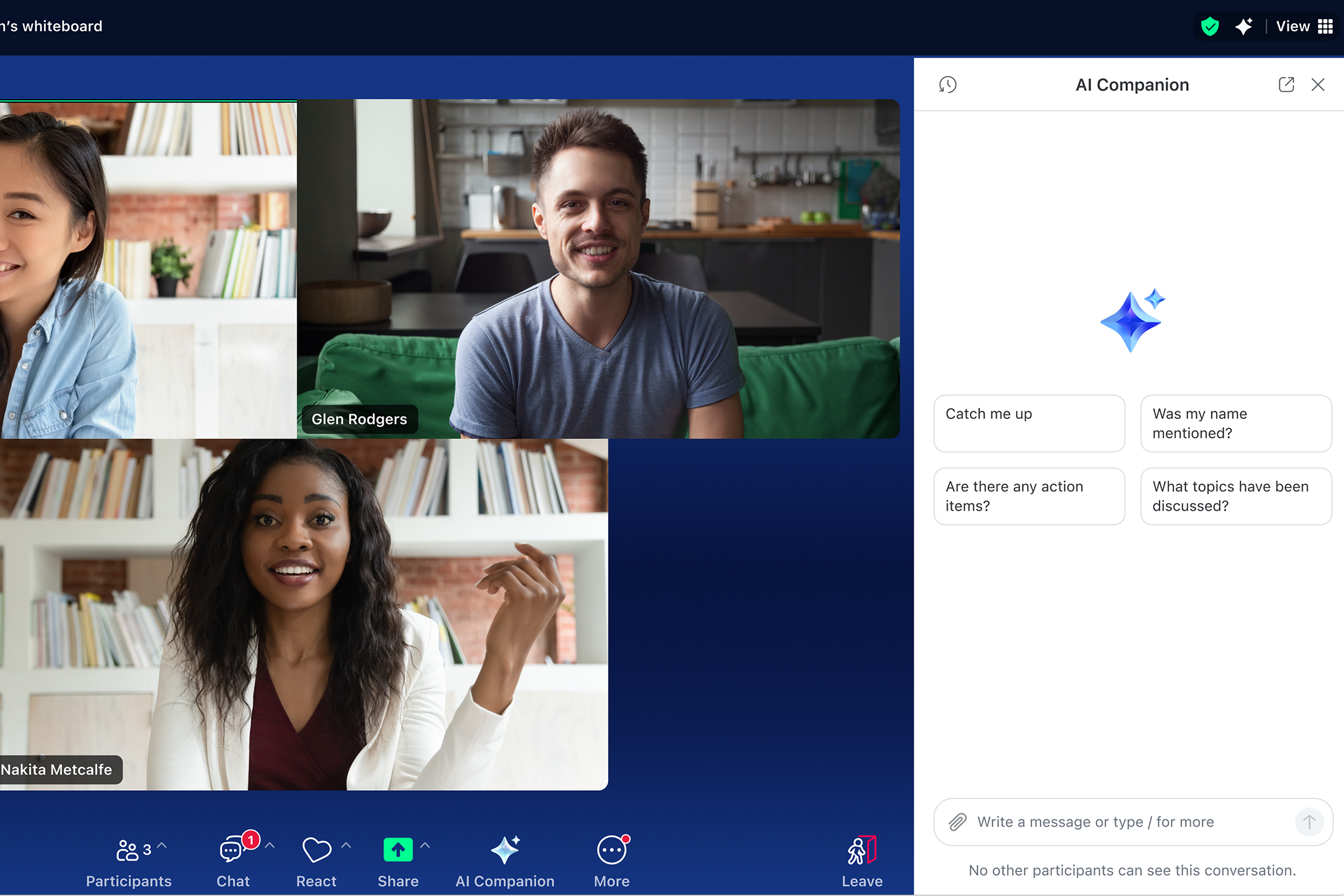
During a meeting, all attendees will be notified when AI features are turned on. When AI features are active in a meeting, an AI icon appears in the top right corner of the meeting window.
Before you roll out AI features across your entire organization, you might want to run a pilot test with a select group of employees. This allows you to test the capabilities, gather feedback, and learn from a smaller user base first. With our granular controls for AI features, it's easy to do that.
If you want, you can assign separate admins to your test group — they won't have full admin account access, but they will be able to add and manage members in your test group. This is perfect if you want to delegate someone to manage the pilot, even if they aren't an account admin.
Employee communication is critical when rolling out any technology. After all, if employees aren't informed about what's available, bought in about how it can help them, and comfortable using it, they probably won't adopt it.
Here are some ways AI in Zoom Workplace can help you be more efficient in your work:
Here's an example template email for introducing AI features to your team. Before you send it, make sure you edit it to reflect which AI features you choose or which Zoom products you're licensed for:
–
Dear [employees],
We're excited to announce that AI features in Zoom Workplace, Zoom's generative AI capabilities, are now available for you to use on Zoom.
AI in Zoom Workplace has a number of capabilities designed to help you throughout your workday to help enhance productivity and collaboration. It can:
Here are some common questions you might have:
Can I choose whether to use AI features?
You can manage which AI capabilities you want to use in Zoom Meetings you host. You can turn these capabilities on or off in your profile settings, and you can choose whether or not to use them in your Zoom Meetings on a case-by-case basis. You can also choose when to turn AI features on or off while your Zoom meeting is in progress, including, if on a supported client version, turning off certain features activated by other meeting participants. The AI icon will be visible in the top-right corner of your window if AI features are active during a meeting. If you join a Zoom meeting where AI capabilities are being used, a notice will be provided.
Will my meeting conversations be used to train AI models?
Zoom does not use any customer audio, video, chat, screen sharing, attachments, or other communications-like customer content (such as poll results, whiteboard, and reactions) to train Zoom's or its third-party artificial intelligence models.
How do I get started?
Look for the AI icon while you're using Zoom Workplace—in your Meetings toolbar, Zoom Chat, Mail, or Zoom Whiteboard.
If you have questions or concerns, contact us at [COMPANY][DEPARTMENT].
___
After you've introduced AI features, follow these tips to drive adoption and help your employees learn how to use them effectively:
Employees learn and engage in different ways, and we have a variety of AI resources available that you can share with them.
Ready to get started with AI features? Here are a few important links:
Editor's note: This blog post was edited in June 2026, to include the most up-to-date information about AI features in Zoom Workplace.
Read how dependable performance turns everyday communication into effortless connection.
 5 min read

The real impact of AI on legal work