Zoom Webinars Guias IA

How to make the most of Zoom AI Companion: Your guide to getting started with your AI assistant

8 min read

Updated on October 23, 2024

Published on September 25, 2023

AIC-meeting-questions
Robin Bunevich
Robin Bunevich
Product Marketing Manager, Zoom AI

Robin Bunevich is a Product Marketing Manager at Zoom. She oversees product marketing and strategy for Zoom AI. After three years of leading marketing for Zoom’s Event Solution products, and launching one of the fastest growing products at Zoom, Zoom Events, she is now focused on helping organizations seamlessly adopt AI into their workflows. Prior to Zoom, she ran marketing for live events at The New York Times, and was instrumental in helping the organization transition to a fully virtual events program in March of 2020. At Zoom, Robin uses her 15 plus years of marketing and advertising experience to drive awareness and adoption for Zoom’s AI solutions.

No matter how you're using technology these days, AI has become integrated at some level, and it's important to make the most of it. A Morning Consult survey for Zoom* found that over 75% of AI-using leaders reported faster task completion, increased productivity, and higher-quality work. Building on these findings, Zoom recently announced AI Companion 3.0 is coming soon, designed to further enhance team efficiency by transforming conversations into actionable results.
 
Zoom AI Companion can do this by automating tasks, surfacing insights, and helping you work smarter, and faster. It’s included at no additional cost with the paid services assigned to your Zoom user account and is designed to integrate with your Zoom Workplace experience, offering a range of capabilities that can help you work smarter, not harder.
 
Whether you’re preparing for meetings, managing projects, or responding to customers, let AI Companion work in the background to proactively suggest next steps, enhance your schedule, and help you focus on the work that matters most.
It can help you uncover critical information across conversations, documents, and apps through note-taking and retrieving relevant content. It helps you be more effective with your time, handling the more tedious work across meetings, docs, chats, and more, so you can focus on the tasks that require your unique expertise. And, coming soon with the launch of AI Companion 3.0, it allows you to deliver high-quality work faster, whether creating content, responding to customer inquiries, or drafting strategic plans, all with minimal guidance in a new AI work surface on the web or in the home tab of the Zoom Workplace app (coming soon) designed to get it right the first time.
 
In this guide, we’ll walk through how to activate AI Companion, explore its key functionalities, and share some tips and tricks to help you make the most of AI Companion in your workday.

What AI Companion can do for you

Whether you’re new to AI or have been exploring its benefits for a while, AI Companion is designed to integrate into your workday without disrupting how you already work. It’s context-aware, capturing the details of your conversations, documents, and tasks to help you focus on what matters most.
 
  • Insight generation: AI Companion turns conversations, documents, and apps into actionable insights. It highlights key points, surfaces relevant information, and helps you make faster, more informed decisions across meetings, chats, and docs. For example, you can ask AI Companion to help with feedback on how a meeting went. This way, you can get a better understanding of how you should prepare for next time.
  • Time optimization: AI Companion handles repetitive work, summarizes messages, drafts responses, and organizes information, freeing you to focus on high-priority tasks and work that only you can do. Coming soon, you can ask AI Companion to free up time in your schedule, and it will recommend which meetings to move or not attend. (Expected October 2025)
  • Action-taking: With Zoom Tasks, AI Companion helps you manage your entire task lifecycle across Zoom Workplace. It can automatically create tasks from meetings, chats, and emails, keep lists organized with AI recommendations, and suggest how to schedule your time for focused work. For example, you can take the action items from a meeting, turn them into tasks, and automatically assign them to the right person.


Summarize information to help you get up to speed

If you’re short on time and have a mountain of chat messages to catch up on, AI Companion can quickly summarize your chat threads and identify action items, helping you grasp the big picture and respond efficiently. When you use the enhanced “prepare me for a meeting” skill, you’ll automatically get a summary of any agenda items, previous action items, and relevant insights before you meet. You can skip the scramble and go straight into a more effective discussion.
 

AI Companion can also provide meeting summaries, highlight agenda items, and break your meeting up into smart chapters—so you stay on top of your priorities with less manual effort. What’s more, if you want the meeting summary, but don't want to record the full meeting, AI Companion can just provide the summary. No recording required.
 
Configure AI Companion to capture insights across Zoom meetings, in-person sessions, and meetings on other platforms like Microsoft Teams and Google Meet. AI Companion organizes your notes, expands on key takeaways, and surfaces critical information so you can act without digging through every conversation. With the launch of AI Companion 3.0, intelligent retrieval will allow you to search across Zoom Workplace, as well as enable Google and Microsoft apps, helping you quickly find the information you need to move projects forward.
 

Keep meeting conversations focused and impactful

According to the Zoom Morning Consult survey, the top task that leaders would be most willing to use AI for is real-time help during meetings, making an AI meeting assistant a valuable tool.
 
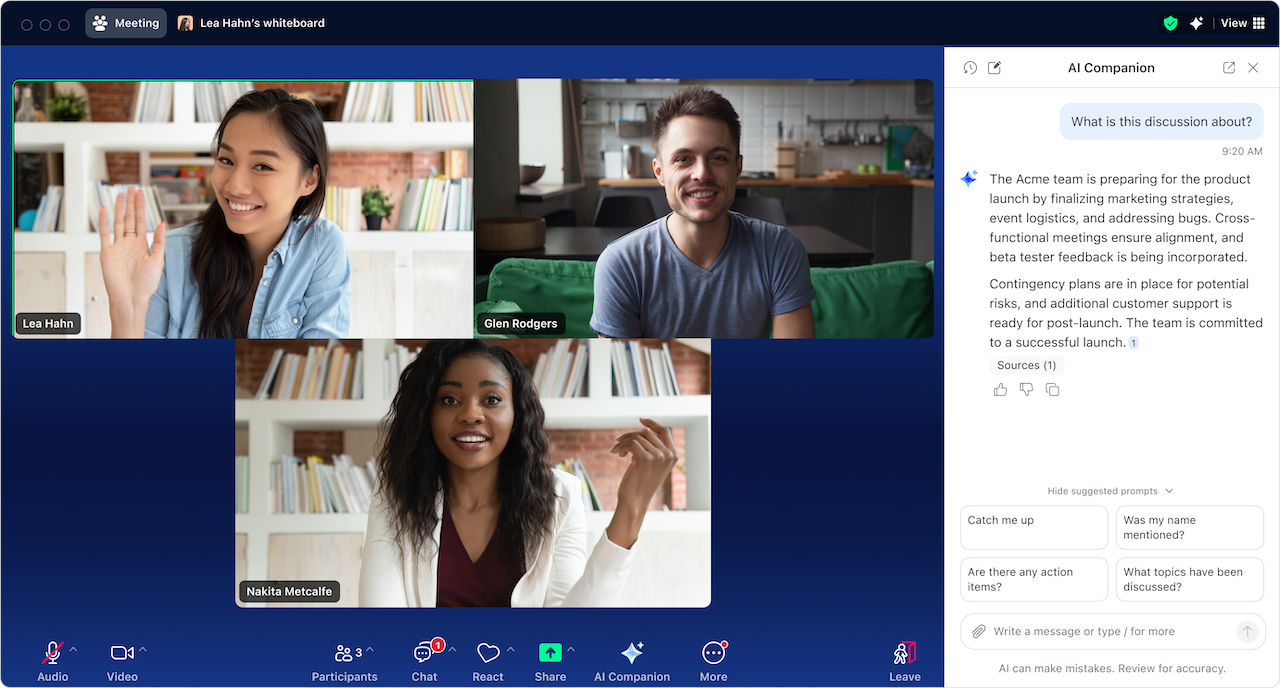
Get in-meeting assistance by chatting with AI Companion through the side panel, where you can request assistance with a wide range of tasks such as capturing feedback and discussion points, asking questions from the web, and learning more about attendees, like what their role is and what timezone they are in. Meeting hosts have settings to control whether they want participants to be able to ask questions about the meeting, including finding out about what happened before they joined. You can proactively track agenda items, highlight key decisions, and suggest next steps to help you stay focused and make the discussion more productive.
 
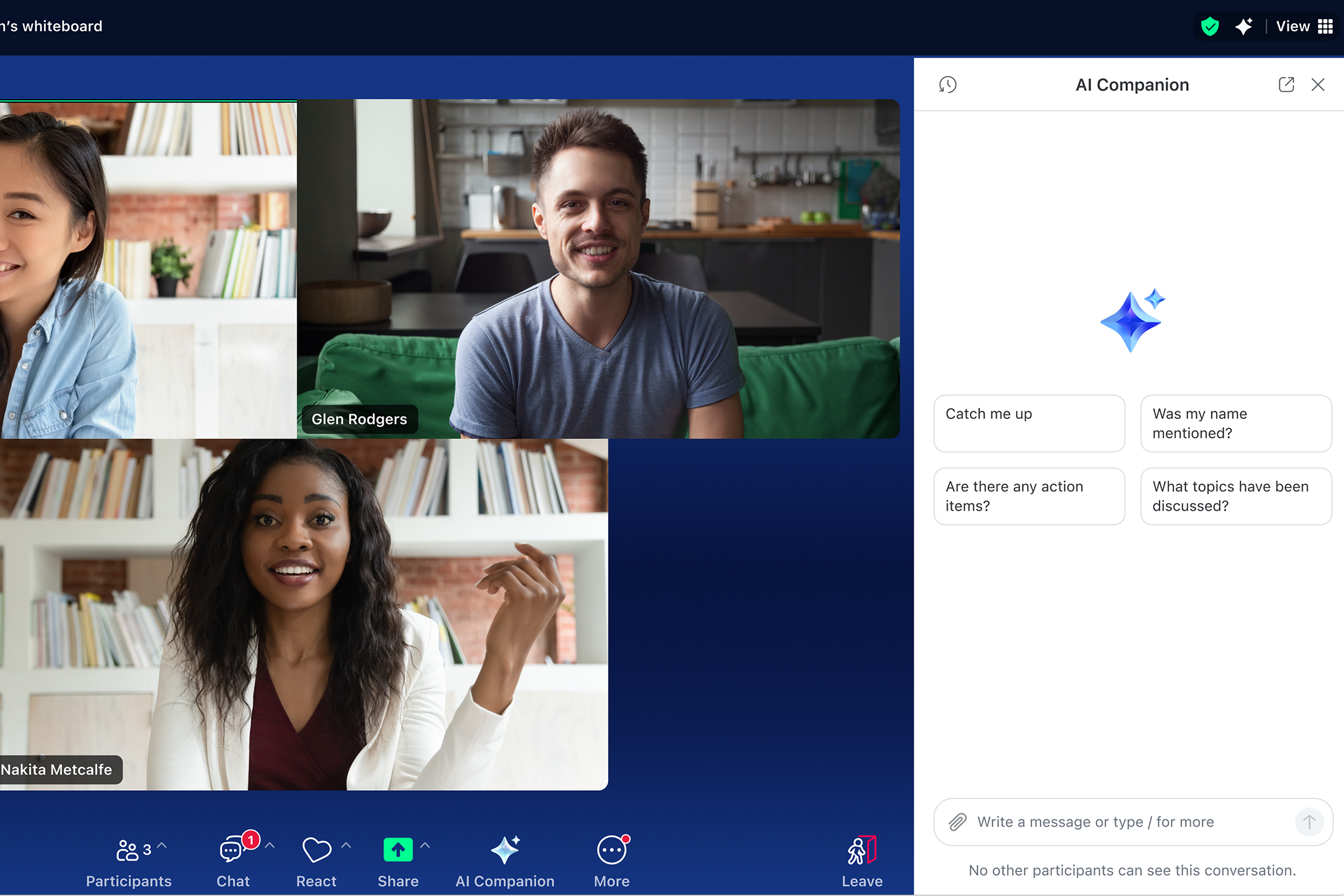
After the meeting, you can use the side panel to ask AI Companion questions about the meeting like, “What topics were covered?” or “Was my name mentioned?” AI Companion can also summarize calls, SMS messages, and voicemails on Zoom Phone to make sure nothing is missed.
 

You’ll be able to take notes right alongside your Zoom meeting window with My Notes (coming soon). You can take your own notes in My Notes, and when you’re done, have your notes enhanced with the meeting transcript, automatically capturing and organizing the key takeaways. Everything is stored in Zoom Hub, so you can easily search and create documents based on your notes.


Get a helping hand with your drafts and absorb content faster

Employees spend more time drafting and sending emails and chat messages than anything else at work, according to the Zoom Morning Consult survey. Adding to that, 44% of employees say they spend more time on those tasks than they want to.
 
  • As an AI writing assistant, AI Companion can compose email messages with the appropriate tone and length, helping you craft professional and effective communications. AI Companion can also help you write a follow-up thank you email to meeting attendees based on what was discussed.
  • You can also use it to compose Zoom Team Chat responses with the right tone and length, which can help you save time and enable efficient communication within your team.
  • In Zoom Whiteboard, AI Companion can help generate ideas on a digital whiteboard and organize content into categories for you, leveling up your brainstorming session.
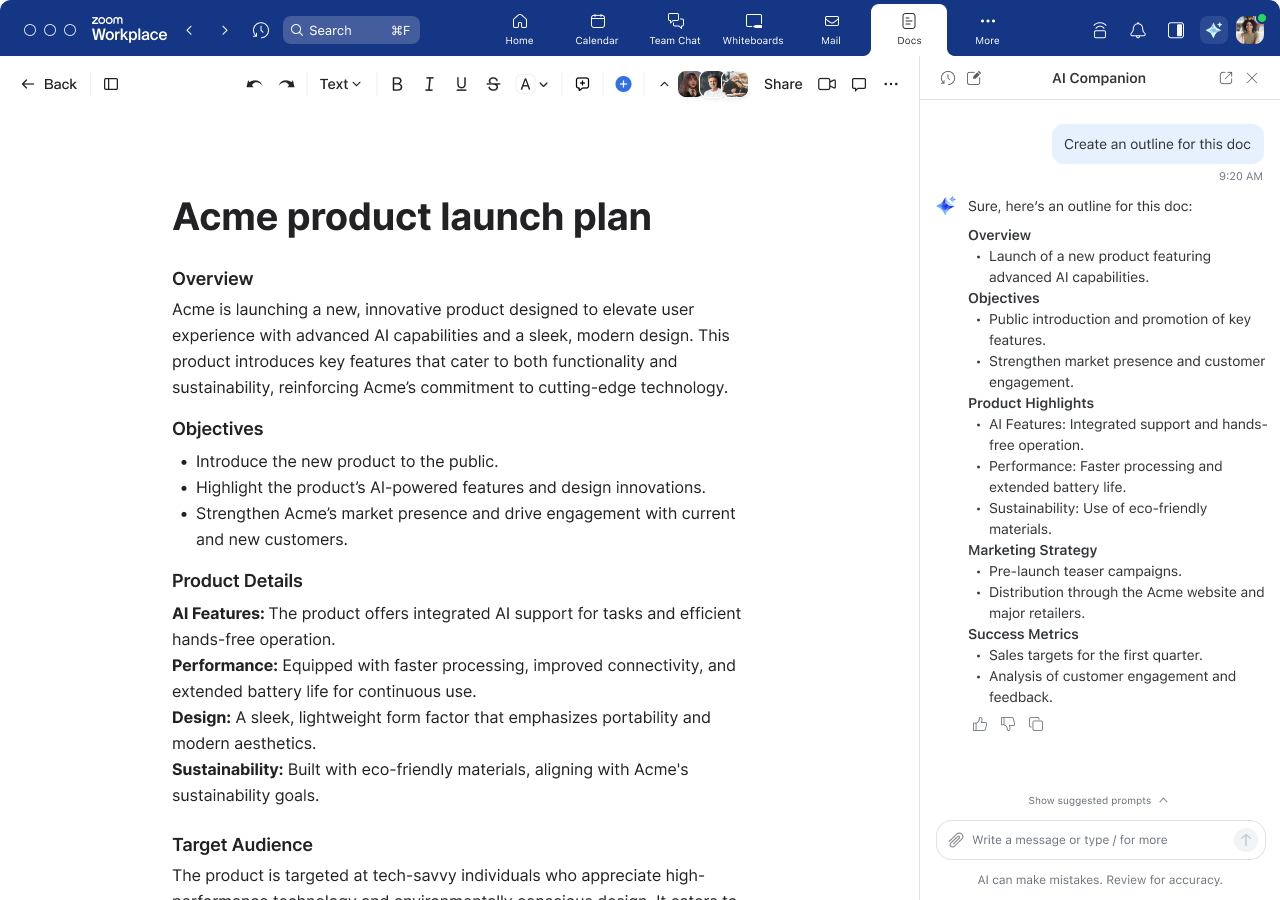
  • In Zoom Docs, you can create, revise, and summarize content all in a single place. Create a new doc from your meeting summaries and use AI templates to transform existing content into exactly what you need.

 
Within the AI Companion side panel, you can ask it to help with things like:
 
  • Create some marketing campaign ideas or have it create some taglines for you based on an uploaded campaign brief document. Have AI Companion help you come up with a new headline, or introduction, or change the tone of your draft.
  • Summarizing or providing specific key points of uploaded files. Upload PDFs, Microsoft Office 365 files, or Google Docs, Sheets, and Slides, and ask AI Companion to summarize for a quick understanding of key points without having to read the entire document.
With the new interactive work surface on the web and in the Zoom Workplace app (coming soon), AI Companion can help guide your writing and research in a centralized space, helping you create high-quality content faster with minimal manual effort.


How to activate AI Companion

You can use AI Companion features available with the paid services assigned to your Zoom user account at no additional cost.**
 
To activate it:
 
  1. Check with your admin: Your administrator may enable or disable features through account and group-level settings.
  2. Open Zoom Workplace and sign in
  3. In a web browser, open your account settings:

    1. On the left, click Settings.
    2. At the top, click AI Companion.
    3. For features that have user-level settings, you can turn each one on and off.
  4. Begin exploring: Look for the AI Companion diamond in multiple products throughout Zoom Workplace, such as your Zoom Meetings controls toolbar or Zoom Team Chat window. After you find the AI Companion diamond, you’re ready to start exploring its capabilities as an AI meeting assistant, writing helper, and more.
To see when new AI Companion 3.0 features are available,check for updates.


Get the most out of AI Companion

Here are some example prompts to get you started, along with features we plan to implement in the future. Try these ways of asking AI Companion for help, and remember that you can upload local documents to AI Companion:
 

Zoom Meetings

  • Summarize a previous meeting.
  • Recap this meeting.
  • Was my name mentioned in this meeting?
  • What were the topics mentioned in this meeting?
  • What are the next steps in this meeting?

Zoom Team Chat

  • Summarize recent messages in this channel.
  • Summarize unread messages in this channel.
  • What did [PERSON] say about [TOPIC] in this channel?
  • What are my action items in this channel?

Zoom Docs

  • Summarize this document.
  • What were the key points in this document?
  • Write an outline about [TOPIC].
  • Create a travel itinerary for visiting [CITY].
  • Create a one-paragraph marketing announcement from this document.

Zoom Mail

  • Summarize this email.
  • List the next steps from this email.
  • Do I need to respond to this email?
  • How urgent is this email?

AI Companion side panel

  • Compare these two documents.
  • Schedule a meeting with myself, [COLLEAGUE], and [COLLEAGUE].
  • Find all emails from [person's name] about the project deadline
  • Help me prepare for my 3 pm meeting with background on attendees and recent discussions
Actual AI Companion results and response speed may vary depending on prompt, product settings, and available data. Zoom will continue to innovate and improve AI Companion over time, collect customer feedback, and improve responsiveness. At the time of writing, AI Companion is available in the Zoom App for macOS, Windows, iPhone, and Android, and via an interactive web surface at ai.zoom.us.
 

Start using Zoom AI Companion today

If you’re ready to enhance your productivity and collaboration, start using AI Companion today — at no additional cost with the paid services assigned to your Zoom user account. Custom AI Companion features are available as an additional paid add-on.
 
If you don’t have an eligible paid Zoom plan, upgrade today to access the benefits of AI Companion. It’s time to work smarter, collaborate more effectively, and achieve your goals with ease.
 
If you want even more AI Companion tips and tricks, check out these resources:
__
 
 
Editor’s note: This blog post was edited in February 2026 to include the most up-to-date information on Zoom AI Companion.
 
*Based on an online survey of 11,023 full-time knowledge workers in the U.S., U.K., Ireland, Germany, France, Japan, Singapore, and Australia. Conducted by Morning Consult on behalf of Zoom Communications, Inc., from August 10 to 25, 2023.
 
**AI Companion may not be available for select verticals and select regional customers.

Our customers love us

Okta
Nasdaq
Rakuten
Logitech
Western Union
Autodesk
Dropbox
Okta
Nasdaq
Rakuten
Logitech
Western Union
Autodesk
Dropbox

Zoom - One Platform to Connect