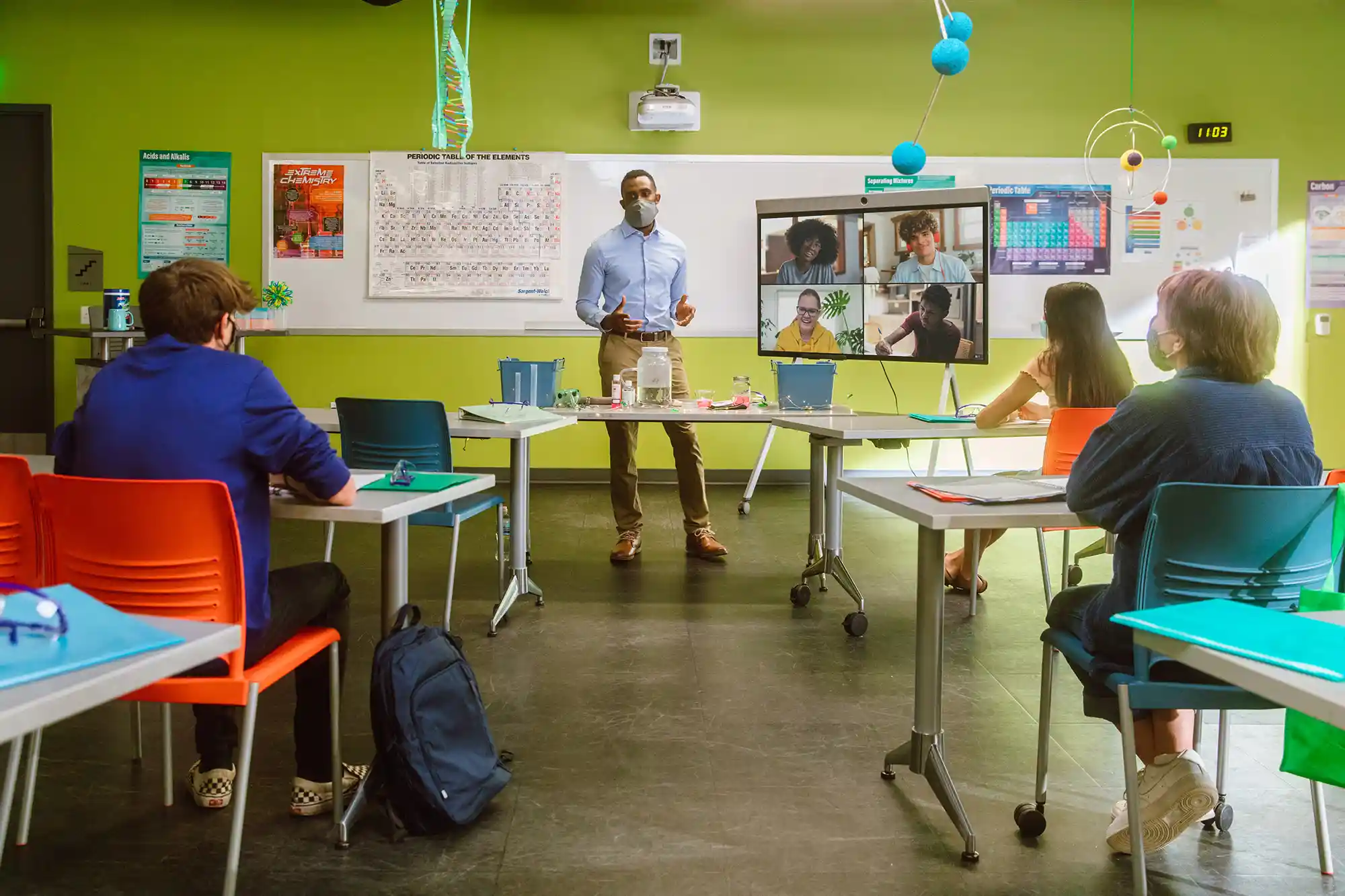
There are a number of features and settings that are enabled by default and can be utilized on the fly to ensure your Zoom classrooms are secure. Within your meeting, the Security icon is your all-in-one place to quickly find and enable security features. This feature allows a host or co-host to:
- Lock the meeting
- Enable the Waiting Room
- Remove participants
- Restrict participants’ ability to screen share, chat, rename themselves, and annotate
 As an additional layer of security, Waiting Rooms and meeting passwords are enabled by default for free Basic and single licensed Pro accounts, and accounts in our K-12 program. The meeting password requirement cannot be changed for those K-12 accounts. We invite you to check out our recent blog on securing your virtual classroom for additional tips.










 7 min read