
Zoom Webinars

Measuring what matters to make every call, app, and AI interaction dependable
Read how dependable performance turns everyday communication into effortless connection.
Zoom employees — or Zoomies — share their favorite tips and tricks for using AI to help improve their productivity and make their workday more effective.
 5 min read
Published on January 11, 2024
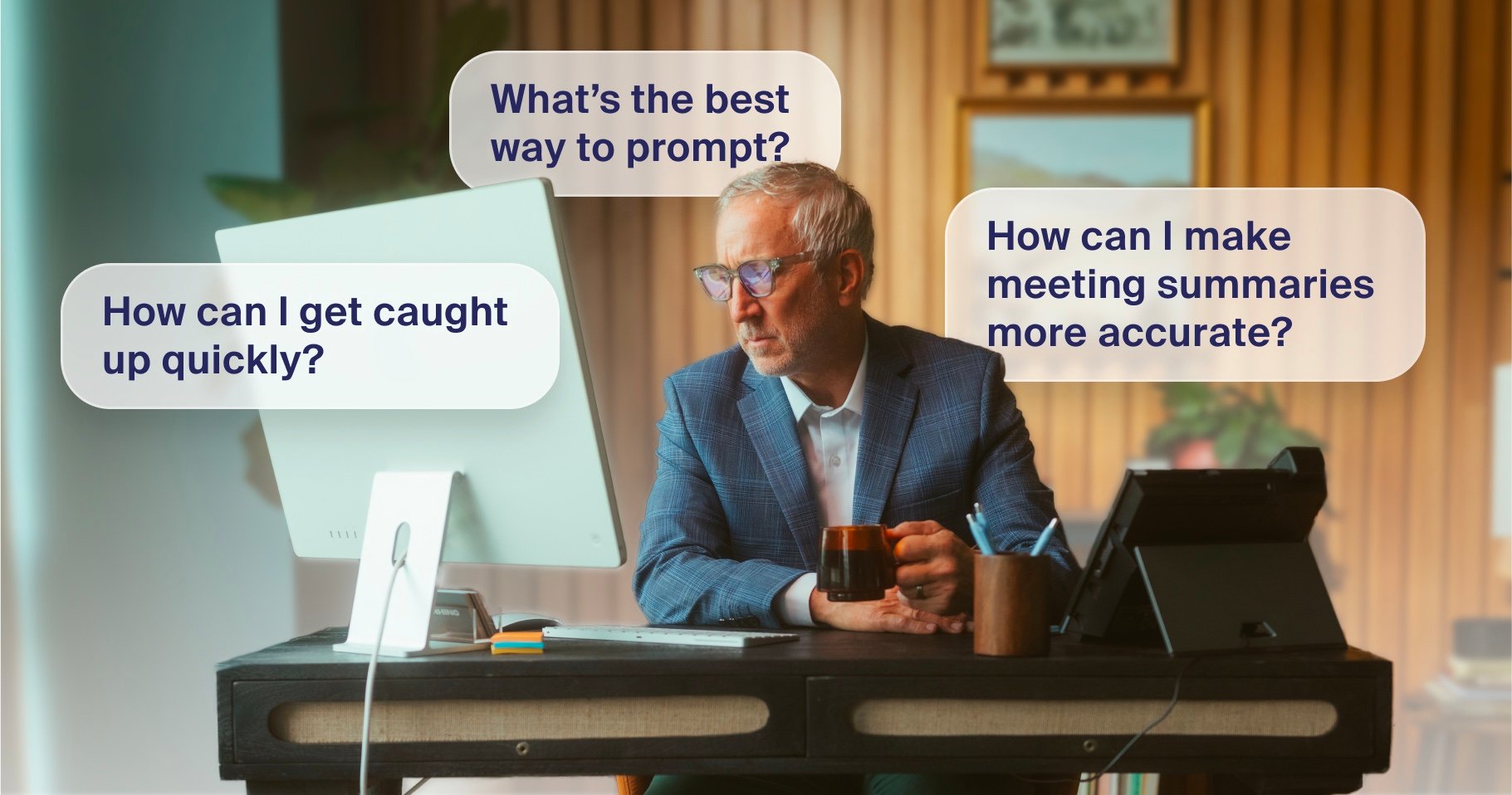



Incorporating AI into your workday can seem like a daunting task, especially if you're not familiar with the technology. How can AI help you? What AI tools should you use? Trying to navigate these questions and more might prevent you from uncovering the potential of an AI assistant.
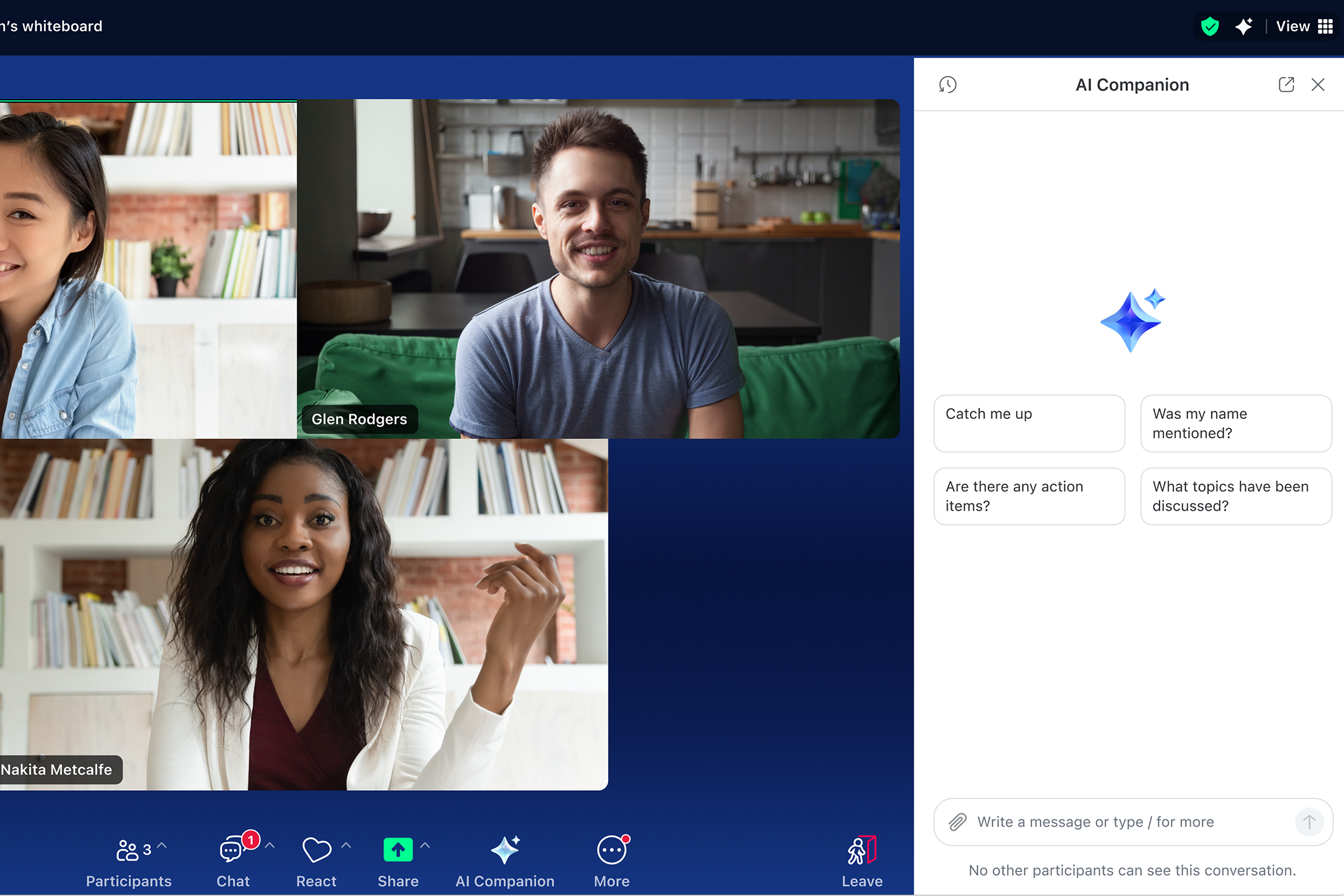
With AI in Zoom Workplace, using AI is as easy as hopping on a Zoom meeting or sending a chat message. That's because AI is built into the Zoom platform, and just as intuitive to use. All you need to do is look for the Zoom AI icon when you're using Zoom, like in your meetings, Zoom Chat tools, whiteboards, and more.
But if you're stuck not knowing what prompt to use, or have yet to try your first meeting summary, Zoom employees — or Zoomies — are here to help. Zoomies are the first to try out many of the latest AI capabilities in their everyday work, and we've compiled some of their favorite tips and tricks to help you get the most out of AI in Zoom Workplace.
A favorite capability among Zoomies is the ability to ask questions during meetings about the conversation in progress. In-meeting questions use the meeting transcript to answer those questions. And though Zoom provides example prompts like "Catch me up," you can also draft and submit your own prompts. Zoomies suggest using specific prompts for results that are more tailored to your desired output, but it takes some practice. Prompting is an art form, and it can be hard to know what to ask.
Here are a few of our favorite custom prompts to ask in your next meeting:
"When you ask AI a question, look at a non-answer as a positive thing," said Will Siegelin, senior product manager. "If you ask whether a topic has been discussed and AI says it's not in the transcript, you know there's an important point that still needs to be addressed."
If you keep forgetting to turn on meeting summaries at the start of the meeting, simply set it to start automatically. You can do this in your web portal settings under the AI settings tab.
However, there may be meetings you don't want a meeting summary for — like one-on-ones and other calls where sensitive info might be discussed, Will noted. "You can edit your recurring meetings and choose to only auto-start meeting summary for your weekly team calls, for example," he said.
You'll find the ability to do this in your web portal by editing your recurring meetings (show "Options," then check the appropriate box).
Did you know you can set pronouns in your Zoom profile? Not only does this help with displaying your pronouns more easily across the Zoom platform, from Meetings to Zoom Chat, it also helps provide more detail for meeting summaries. If you have your pronouns set in your profile, meeting summaries will use those pronouns when referring to you.
"Getting pronouns right is an important and highly requested feature among our customers," said Ailian Gan, lead product manager of AI products. "Putting customers in control of their pronouns means they have control over how AI presents them in meeting summaries."
If you're returning from a long break away from work, coming back to a mountain of chat messages can be overwhelming. If you've got a chat thread with dozens of replies, instead of reading through each message, right-click the original post and select "Summarize".
"Coming back from the holidays to a thread with over 100 chat messages — there's a good chance you don't need to read through them all. AI-generated summaries do a great job capturing the key points," said Josh Stanley, specialist sales strategy lead.
Likewise, your colleagues may have recorded those meetings you missed, but sitting through every recording can take up a lot of time. With smart recording, you can use the smart chapters feature to watch only the parts of those meetings that are relevant to you. And if your meeting wasn't recorded but meeting summary was activated, you can simply read the AI-generated meeting summary instead.
p>Ready to see how AI in Zoom Workplace can help you be more productive? Check out our guide to getting started with AI in Zoom Workplace.
Read how dependable performance turns everyday communication into effortless connection.
 5 min read

The real impact of AI on legal work