
Your guide to getting started with ZoomMate
Everything you need to start using ZoomMate: notes, search, workflows, and AI tools — all inside Zoom Workplace.
A hands-on CRM tutorial walking you through setup, contact organization, and automation so client details stop living in scattered spreadsheets.
 10 min read
Published on September 30, 2026



Picture this: you've got twelve active clients, three of them mid-project, and their details are scattered across old email threads, a notes app, and a spreadsheet you haven't updated in weeks. A solid crm tutorial fixes that mess by showing you, step by step, how to get client details organized in one searchable system instead of scattered across several tools.
(CRM stands for customer relationship management, software that centralizes a client's contact details, project history, and communication in one record.) Whether you're a first-time freelancer or you searched for a crm tutorial para iniciantes because you're just getting started with client management, the core process is the same: pick a tool that fits your workflow, import your contacts, organize them so they stay useful, and automate the follow-ups you'd otherwise forget. This guide walks through each of those steps with concrete examples you can apply the same day, whether you're managing five clients or fifty. If you haven't settled on a tool yet, it's worth taking a moment to compare CRM options for your business before diving into setup, since the right fit will make every step below faster.
Manage clients, leads, and projects in one CRM
CRM stands for customer relationship management: software that stores a client's contact details, project history, and communication in one record instead of scattered files. A good CRM tutorial should teach you how to move from ad hoc tracking to a structured system before you touch a single settings menu. Freelancers and small teams typically outgrow spreadsheets once they're juggling more than a handful of active clients, because a static grid can't send reminders, log notes, or show you who's overdue for a follow-up. This walkthrough covers the same five steps whether you're reading along in English or you landed here searching for a crm tutorial para iniciantes: choosing a tool, setting it up, organizing your data, automating follow-ups, and keeping communication tied to each client's record.
Before you create an account anywhere, match the tool to how you actually work. A freelance photographer tracking eight clients through a simple pipeline has different needs than a five-person agency juggling forty accounts and multiple deal stages. Start by listing must-haves: contact records that hold more than a name and email, pipeline stages you can customize, a place for notes on every call, and reminders that ping you before a follow-up slips.
Budget and team size matter too. A solopreneur with a dozen active clients might only need the basics, while a growing team needs shared visibility across records. If you're still weighing tools, it helps to review the criteria for evaluating a CRM before committing to setup.
Once you've picked a tool, the first hands-on step is creating your account and filling out your business profile: company name, logo, and the services you offer. This information typically populates proposals and invoices later, so it's worth getting right the first time. For a more detailed walkthrough of this stage, the step-by-step CRM setup guide covers configuration options beyond the basics below.
Next, get your existing client data into the system. Most CRMs support a CSV upload for bulk imports, or manual entry if you're only tracking a handful of contacts. A freelance copywriter moving from a spreadsheet of 15 clients might export that sheet as a CSV and map columns like name, email, and project status during upload.
Before moving on, scan the imported list for duplicates and missing fields. A contact imported twice, or one missing a phone number, causes confusion later when you're trying to log a call or send a reminder.
Manage clients, leads, and projects in one CRM
Once your contacts are in the system, the next job is making sure that list stays useful as it grows past twenty or thirty clients. A freelance web developer with fifteen active accounts needs to find "the bakery client with the $3,000 redesign" quickly, not scroll through a flat list. This is where tags, custom fields, and pipeline stages earn their keep.
Manual tracking breaks down the moment you have more than a few deals moving at once, which is exactly why automation belongs in any crm tutorial worth following. A freelance consultant who sends a proposal on Monday can schedule a follow-up email for Thursday if the client hasn't responded, instead of relying on memory or a sticky note. The same logic applies to stalled deals and unpaid invoices: a reminder set for three days past due nudges the client, and a second one at ten days flags the account for a personal check-in.
For a deeper setup guide, building an automated follow-up system walks through sequencing and timing in more detail. The goal isn't to replace personal outreach, but to reduce the mental load of remembering who needs a nudge and when.
Most client calls or meetings should end with a quick note logged on that client's record, not a mental note you hope to remember later. A freelance consultant wrapping up a 30-minute check-in with a client can jot down what was discussed, what the client agreed to, and what's due next, in the same record where the invoice and contract already live. This habit is one of the simplest ways to keep track of clients effectively as your list grows past a dozen active accounts.
The difference between manual tracking and CRM-based tracking becomes obvious once you compare them side by side.
| Task | Manual tracking | CRM-based tracking |
|---|---|---|
| Meeting notes | Scattered across email and notes apps | Logged directly on the client record |
| Follow-up context | Requires searching old threads | Visible directly on the record |
| Team visibility | Limited to whoever took the notes | Shared across the team |
Some CRMs go a step further and sync meeting transcripts automatically, so notes land on the client's record without manual entry. That capability is worth understanding before you finish setting up your own workflow.
Each step in this tutorial maps to a specific part of the Bonsai CRM, so you can manage proposals, contracts, and client records without switching between as many separate tools. Client and company records support deal stages and pipeline views, so the pipeline structure covered in Step 3 (Lead, Proposal sent, Contract signed) is something you configure directly on the board rather than approximate with color-coded spreadsheet cells. A freelance interior designer managing eighteen active clients, for example, might set up custom stages for Consultation, Design review, and Installation, then filter the board by stage to see who needs attention that week.
The organization step also carries into sales documents. When a client accepts a proposal built in Bonsai proposals, Bonsai generates the invoice from the proposal's line items, so a consultant who quoted a $4,500 project doesn't have to retype those numbers into a separate invoicing tool. Proposal open tracking also notifies the sender when a client views it, which supports the follow-up timing described in Step 4: if a proposal has sat unopened for several days, that's a cue to check in before assuming the client went quiet.
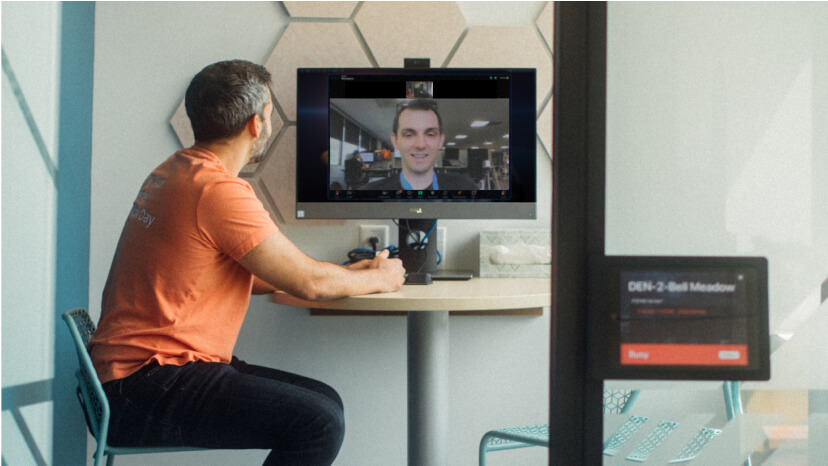
Step 5, keeping meetings tied to client records, is where the Zoom connection matters most. Because Bonsai integrates with Zoom, meeting transcripts can sync to the client's record automatically, landing as notes on that contact instead of getting stuck in a separate meeting app. A consultant who wraps up a client check-in over Zoom doesn't have to manually summarize what was discussed; the transcript is already attached to the same record where the contract and invoice live. Communication history and notes stay on one record, whether they came from a manual entry or a synced transcript, which is the structure this tutorial has been building toward.
A CRM tutorial typically covers five stages: choosing a tool that fits your workflow, setting up an account and importing contacts, organizing client data with tags and pipeline stages, automating follow-ups, and keeping meeting notes tied to each client record. CRM stands for customer relationship management, and a good tutorial walks through each stage with concrete examples rather than abstract feature lists. The goal is to get every client detail into one searchable system instead of scattered emails, notes apps, and spreadsheets.
Most tutorials assume no prior software experience, since freelancers and small teams often move to a CRM straight from manual tracking methods. A useful tutorial also shows how the stages connect, such as how organized pipeline stages make automated follow-ups more effective, rather than treating each step as an isolated task.
Start by picking a CRM that matches your workflow and budget, then create an account and import existing contacts, either through a CSV upload or manual entry for a smaller client list. From there, organize those contacts with tags, custom fields, and pipeline stages so the list stays useful as it grows past a dozen or more active clients. Set up automated reminders for follow-ups and overdue invoices, and log meeting notes directly on each client's record instead of in a separate app.
This sequence works whether you're managing five clients or fifty, though the setup time scales with how much existing data you're importing. A freelancer moving from a 15-row spreadsheet, for example, can usually complete the first three steps in under an hour, while a small agency migrating years of client history may need to clean up duplicates and missing fields before organizing the data further.
A CRM is generally not hard to learn, since most tools organize around a familiar structure: contact records, a pipeline view, and a notes section for communication history. Someone searching for a crm tutorial para iniciantes, or any first-time user, typically needs less than an hour to import contacts and set up basic pipeline stages before the system becomes usable day to day. The learning curve mostly involves deciding how to structure tags and custom fields, not mastering complex software.
Where beginners tend to slow down is customization, such as deciding which custom fields matter for their specific business or how many pipeline stages to create. Starting with a small set of fields and stages, then adding more as patterns emerge, keeps the initial setup manageable without overbuilding a system before you know what you actually need.
A CRM, short for customer relationship management, is software that stores a client's contact details, project history, and communication in one record instead of spreading that information across email, spreadsheets, and notes apps. Instead of searching old email threads to remember what a client agreed to, you open their record and see the full history in one place. It replaces the manual work of tracking who needs a follow-up, what stage a deal is in, and when a payment is due.
For freelancers and small businesses, a CRM usually also includes pipeline stages to track deals from lead to signed contract, along with reminders that flag overdue tasks or unpaid invoices automatically. The core idea stays the same across tools: centralize client information so nothing depends on memory or a single person's inbox.
Bonsai CRM supports the structure covered in this tutorial directly, with client and company records that include configurable pipeline stages and deal tracking, so you can set up a board with stages like Consultation or Contract signed rather than approximating that structure in a spreadsheet. Proposal open tracking and automatic invoice generation from accepted proposals also tie into the follow-up habits described above, since a proposal that's sat unopened for days is a clear cue to check in.
Because Bonsai integrates with Zoom, meeting transcripts can sync to the client's record automatically, landing as notes on that contact so communication history stays organized on the client's record. This means the last step in the tutorial, keeping meetings tied to client records, happens with less manual entry than logging notes by hand after every call.
Building a working CRM system comes down to five habits: choosing a tool that fits how you work, importing your contacts cleanly, keeping that data organized as it grows, automating the follow-ups you'd otherwise forget, and tying every meeting back to the right client record. Once those habits are in place, client management stops depending on memory or a messy inbox and starts running on a system you can trust. If you're comparing options for putting this tutorial into practice, Bonsai CRM by Zoom is built around that same structure, from pipeline stages to Zoom meeting transcripts landing directly on client records.