
Virtual backgrounds
Virtual backgrounds

Zoom virtual backgrounds

Browse our curated list from around the web. Download your favorite virtual backgrounds and add them to your meetings!

Filter by:
categoryFilters apply upon selection
Type
119 Results
Type

No resources found.

Please try changing your filter criteria or search term.

How to change your Zoom background

It’s easy to change your virtual background to an image - or even a video. Follow the steps below to get started. Pro tip: Update to the latest version of Zoom to see all options and filters.

Download an image or video

Download an image or video

Compatible image formats: JPG/JPEG, or PNG with a 16:9 aspect ratio, and a minimum resolution of 1280x720 pixels. Video formats: MP4 or MOV files with a minimum resolution of 480x360 pixels (360p) and a maximum resolution of 1920x1020 (1080p).

Sign in to Zoom

Sign in to Zoom

To change your virtual background before a meeting, sign in to the Zoom desktop app, click your profile picture, select Settings, then go to Video & Effects.

Select a virtual background

Select a virtual background

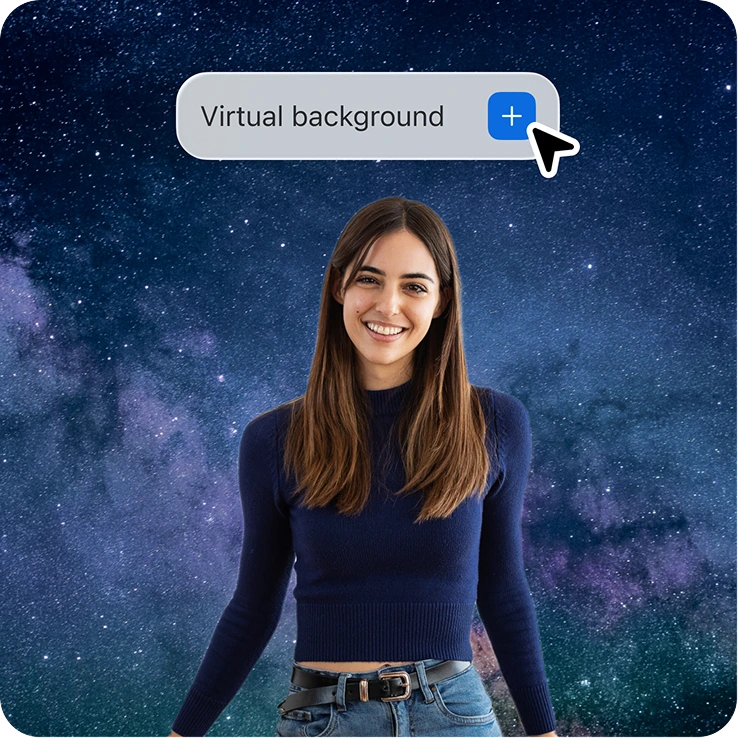
Choose from Zoom's preloaded options or upload your own by clicking the add (+) icon. Create custom backgrounds using AI Companion by entering your idea and clicking Generate.


To change your virtual background during a meeting, click the arrow (^) next to Start/Stop Video, then Choose Virtual Background.

Add some fun to calls with filters and stickers

Set the mood or add levity to calls with filters or stickers. You can access both from either the desktop app, or from within a meeting.
In the desktop app:

  • Go to Preferences > Background & Filters
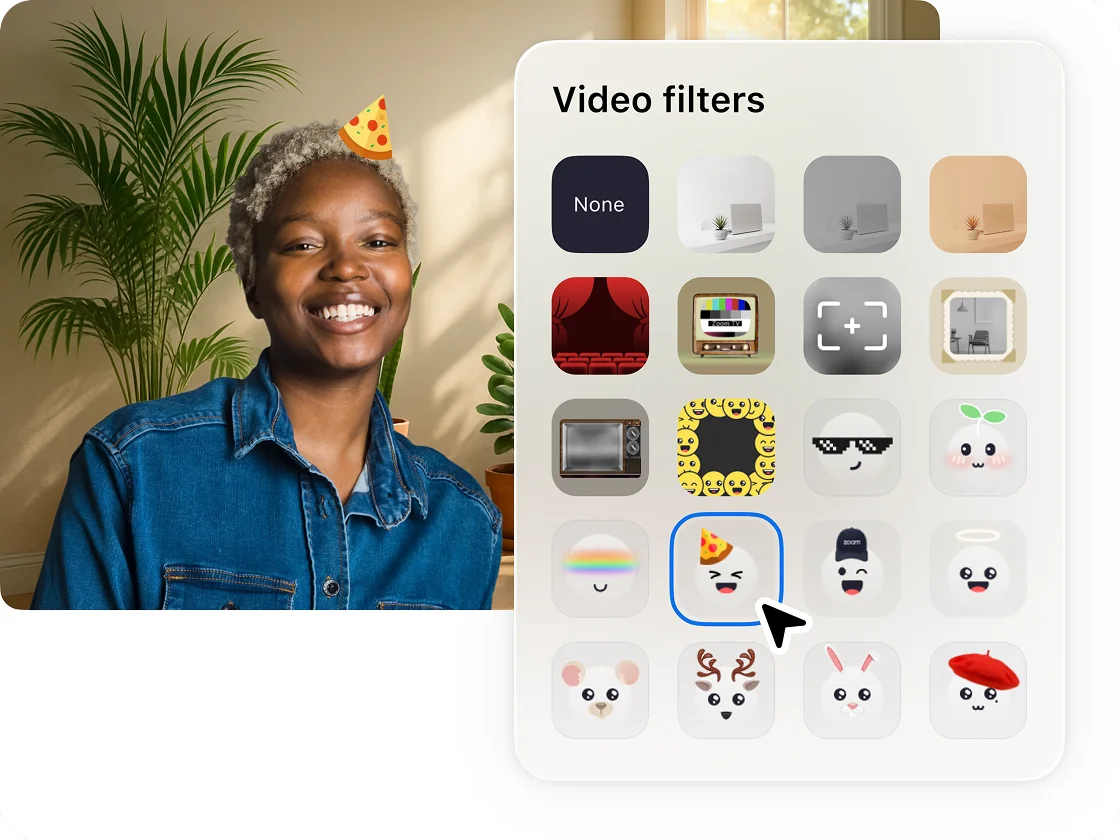
  • You’ll see Virtual Backgrounds and Video Filters. Click on Video Filters
  • Within Video Filters, you can preview the filters, sticker backgrounds, or stickers that move with you, like a graduation cap, sunglasses, or even transform yourself into a unicorn!

You can also add filters and stickers during a meeting. Click on the upward arrow (^) next to Start/Stop Video. Click Choose Video Filter, and try out a new look.

Image
Image

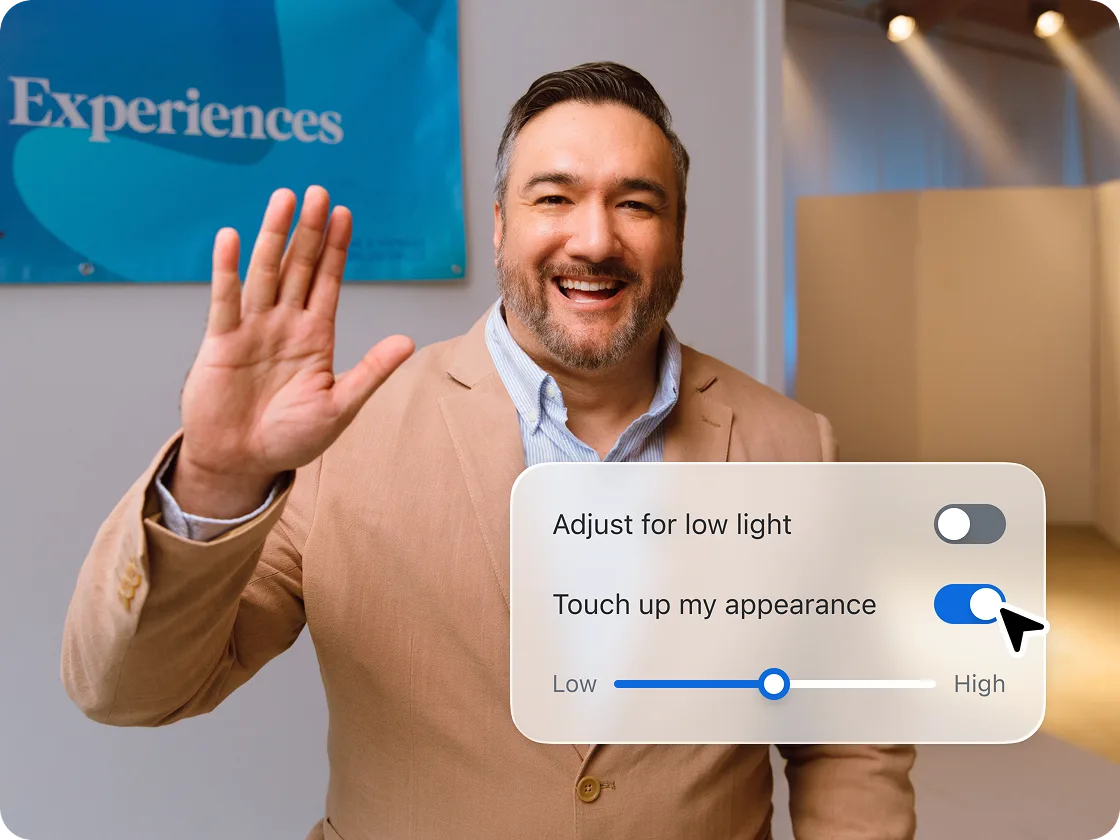
Touch up your appearance
and adjust for low light

If you don’t have the best lighting, or just want to brighten up your appearance, you’ll want to know about the touch up your appearance and lowlight settings.
To access both of these features from the desktop app, follow these simple steps:

  • Go to Preferences > Settings
  • Click Video in the left side navigation
  • Under My Video you’ll see check boxes for both Touch up my appearance and Adjust for low light. Both features will automatically adjust your video, but you can also manually adjust them using the slider

To touch up your appearance or lighting during a meeting, click on the upward arrow (^) next to Start/Stop Video. Click Video Settings, and easily adjust your video on the fly.


Zoom AI Companion is available with eligible paid Zoom Workplace plans. May not be available for all regions or industry verticals. Learn more.