Meeting & Chat How-to Webinars & Events Zoom Workplace

Zoom avatars: show up your way in every meeting

From realistic AI-first representations to fun animal characters, here's everything you can do with avatars in Zoom Workplace.

4 min read

Published on July 1, 2026

Avatars

Not feeling camera-ready? You're not alone. Whether it's an early morning standup, a back-to-back afternoon, or just one of those days, sometimes you want to be present in a meeting without actually being on camera.

That's where Zoom avatars come in. Avatars let you show up visually — with real-time facial expressions and head movements — without broadcasting your actual video feed. You stay engaged, your colleagues see you reacting and participating, and you get to skip the ring light.

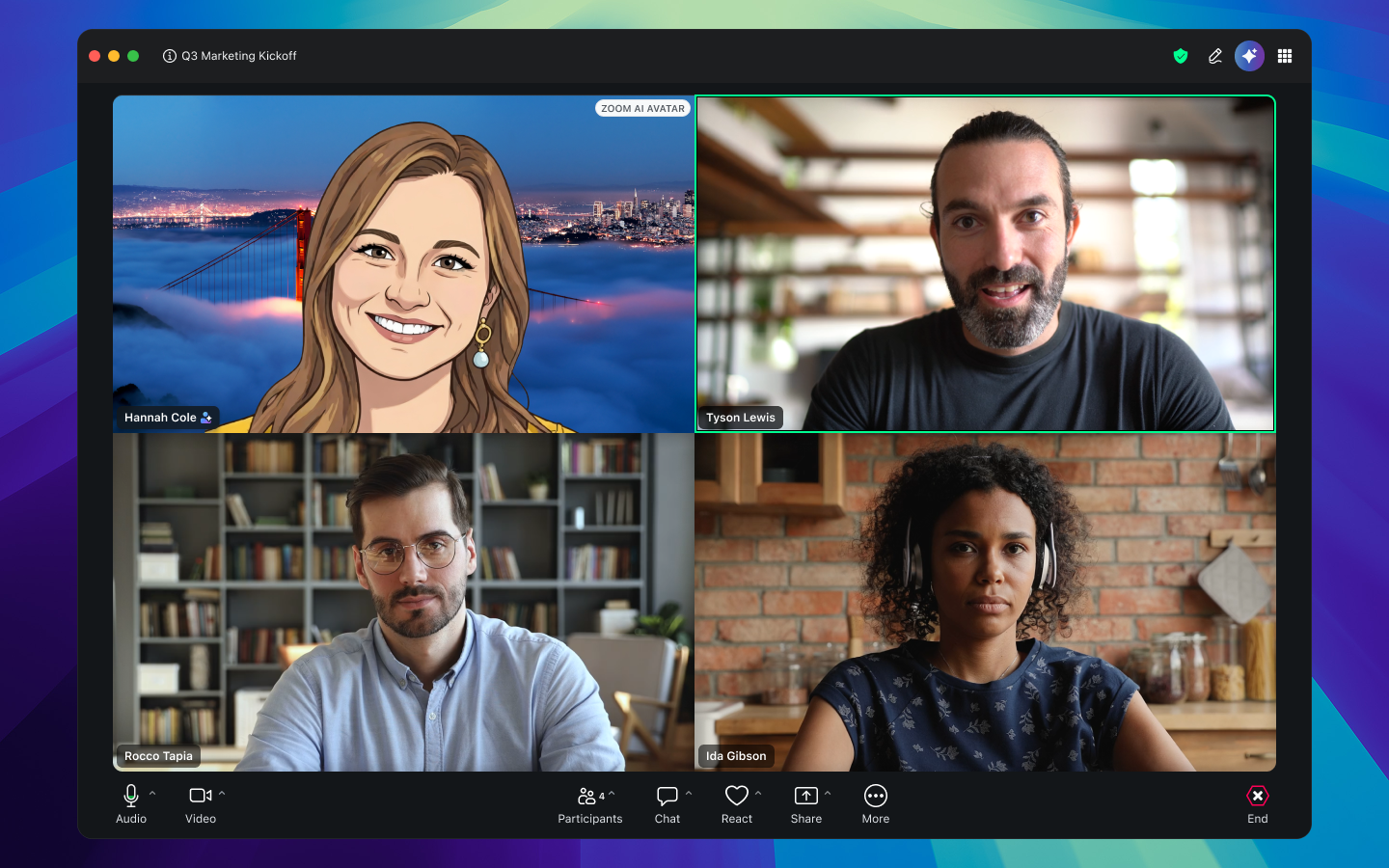
Today, Zoom Workplace offers a full range of avatar options: from AI-first realistic representations that actually look like you, to stylized illustrations, customizable cartoon characters, and the original animal avatars that started it all. Here's everything you can do with avatars today.

Ready to show up your way?

Realistic avatars

Realistic avatars are AI-generated, lifelike 3D representations created from your photo. They're designed to look like you — same face, same expressions — rendered in real time as you move and speak during a meeting.

To create one, you'll go through a short setup wizard: upload or take a photo, complete an identity and liveness check (a quick blink or head movement to confirm it's really you), and choose an outfit from your photo or a gallery. The whole process takes a couple of minutes, and you only need to do it once — though you can recreate or update your avatar anytime.

During a meeting, your realistic avatar mirrors your facial expressions and head movements in real time. Your camera needs to be on for this to work — the avatar uses your live movements to animate — but participants see the avatar, not your video feed. A small watermark indicates to others that they're seeing an avatar rather than a live camera.

Learn more about hardware and software requirements for realistic avatars.

Stylized avatars

Stylized avatars take the same AI approach but with an artistic twist. Instead of a photorealistic rendering, you get an illustrated, stylized version of yourself — think of it as a polished digital portrait that still captures your likeness.

The creation process is identical to realistic avatars: upload a photo, complete the liveness check, pick an outfit, and you're set. Stylized avatars also require your camera to be on during meetings and share the same hardware requirements and 10-avatar limit.

The choice between realistic and stylized comes down to personal preference. Realistic aims for lifelike accuracy; stylized gives you something more expressive and artistic.

Cartoon avatars

Cartoon avatars take a different approach. Rather than generating from a photo, you build one manually — selecting hairstyles, facial features, and clothing from a gallery to create a custom character.

The big differentiator: cartoon avatars work with your camera on or off. With camera on, the avatar mirrors your head movements and expressions just like realistic and stylized. With camera off, it still represents you visually in the meeting — a step up from a static profile picture.

Cartoon avatars have lower hardware requirements than the AI-powered options, and you can create them right in the middle of a meeting if you want. You can save up to 25 cartoon avatars.

Animal avatars

Animal avatars were the first avatar option in Zoom, and they let you appear as an animated character — a cat, fox, panda, dog, or one of several other options — that mimics your head movements and facial expressions in real time.

They're lighthearted by design: good for casual team meetings, classroom settings, virtual events, or any situation where a bit of fun is welcome. Animal avatars work on Windows, macOS, and iOS, and require your camera to be on.

Custom AI avatars for Zoom Clips

Avatars aren't limited to live meetings. With Zoom Clips, you can create a custom AI avatar of yourself — using your face and voice — and use it to generate video clips without ever turning on your camera.

Here's how it works: you record a short video of yourself (30 seconds to 2 minutes) to build the avatar on your likeness and voice. After that, you can upload or type a script, and your avatar will narrate it as a polished video clip — complete with natural facial movements and lip sync. You can even translate the video into up to two additional languages and have your avatar deliver it in each one — available across plans with varying minute limits. You can also use AI with the context of any existing meetings to help you come up with an engaging script.

This is useful for async communication: training videos, project updates, slide deck presentations, announcements, or any situation where you'd normally record yourself but don't have time (or energy) to set up a camera. You can even convert a set of slides directly into a narrated video — no camera setup required. Custom AI avatars for Clips are part of Zoom Workplace, with advanced features and extended time limits available through the Custom Avatars add-on.

Learn more about custom avatars for Clips.

Why avatars matter for your organization

For teams and admins thinking about whether to enable avatars, here's the practical case:

Avatars keep video culture alive without mandating cameras. Most people recognize that visual presence helps with engagement and trust in virtual meetings — but forcing cameras when someone isn't comfortable can create tension. Avatars offer a middle ground: participants stay visually present with real-time nonverbal cues, without the pressure of being on camera.

On the security side, realistic and stylized avatars include built-in authentication and liveness detection designed to help to prevent misuse. A visible watermark makes it clear to participants when someone is using a realistic or stylized avatar.

During live meetings, avatar animation uses on-device face detection to drive real-time animation and mirror your expressions. For avatar creation, your photo is uploaded and processed by AI to generate the avatar, then securely stored in your account. You can delete your avatar and associated photo data at any time from your profile settings.

Admins control avatar availability at the account, group, or user level.

How to get started

Setting up an avatar takes less than a minute. For the full walkthrough — including step-by-step instructions, hardware requirements, and admin setup — check out our support article.


Feature availability varies by plan and region. Usage and hardware limits may apply; check our plans and pricing page for details.

Ready to show up your way?

Our customers love us

Okta
Nasdaq
Rakuten
Logitech
Western Union
Autodesk
Dropbox

Zoom - One Platform to Connect