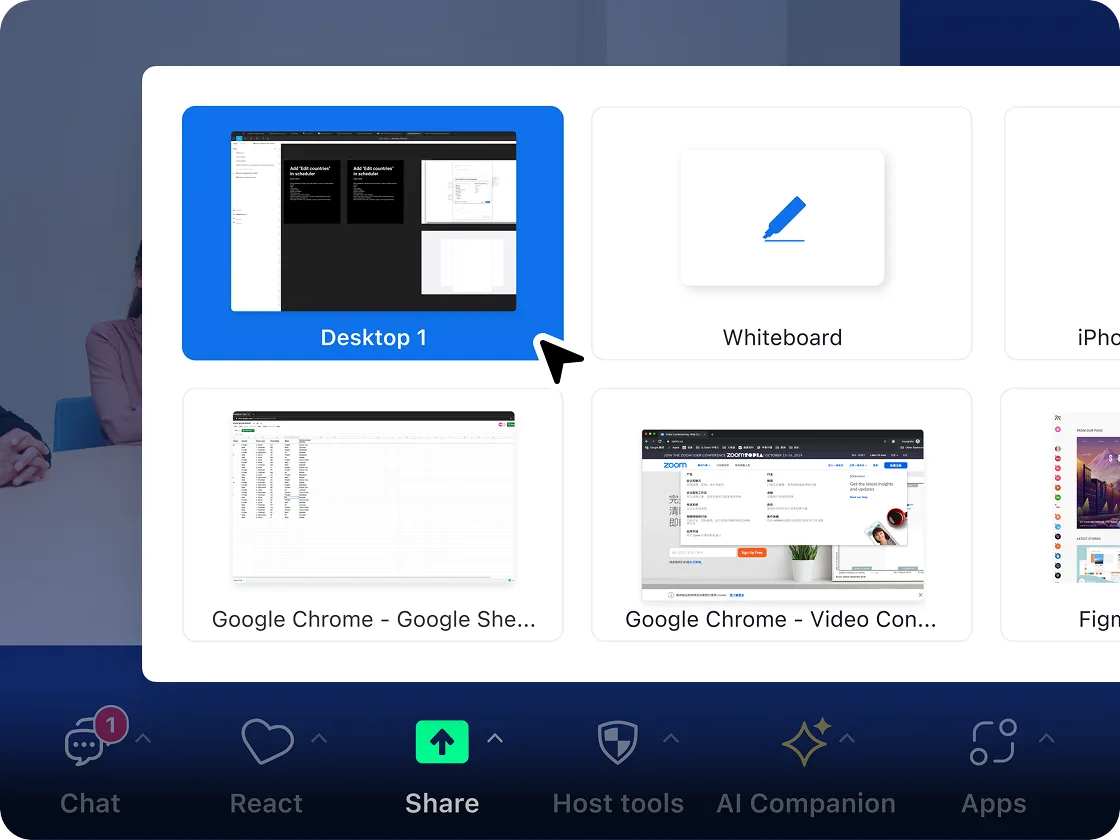
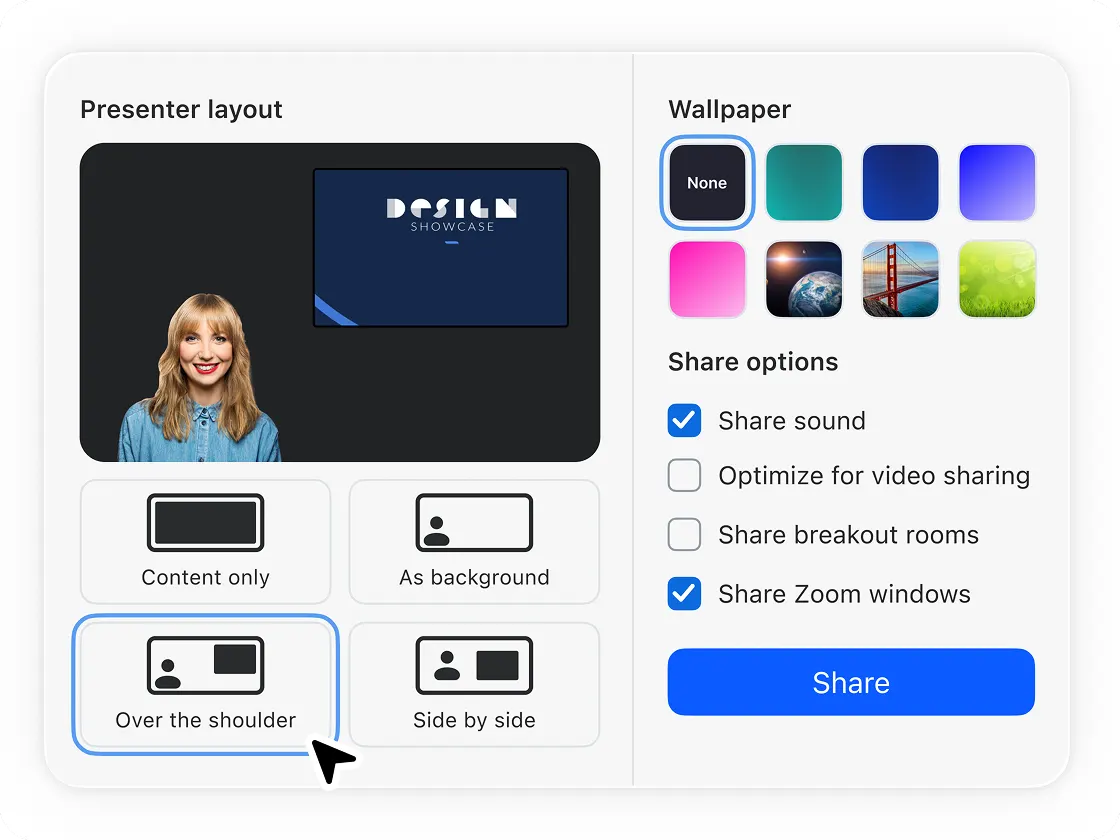
Whether you’re giving a virtual presentation, providing customer service, giving a product demo, or coordinating with remote teams, the ability to share the content on your screen during video calls is important for individuals and organizations alike. With Zoom’s screen sharing feature, you can easily share the content on any device during your meeting, creating a meeting experience where that keeps everyone on the same page.
Screen sharing enhances collaboration
With the ability to share your screen during your meetings, you give your meeting participants the opportunity to see what you’re describing in real time, removing the need to share files or dig through emails. But you aren’t limited to simple screen sharing, there’s much more you can do.
Screen sharing tips and tricks
Although screen sharing on Zoom is easy, we have a few tips and tricks to help you get the best experience while sharing your screen:
Got questions? We’ve got answers.
To use screen sharing during a meeting, you need to have it enabled in your settings. To enable screen sharing:
- Sign into your Zoom account at zoom.us/signin.
- Click Settings and navigate to the Meetings tab.
- Scroll down to the In Meeting (Basic) section
- Toggle Screen Sharing ‘on’ to enable screen sharing
You can also choose to allow only the host or all participants to screen share in the settings. If you’d like to share your screen during a meeting but cannot, you can also ask the host to grant you permission to screen share.
Screen sharing during your Zoom Meeting is secure; however, you need to secure your meeting to help prevent unwanted participants from joining and annotating on shared content or sharing their own. Here’s what you can do to promote a safe and effective Zoom meeting experience:
- Enable Zoom’s security settings: You can find Zoom’s security features and options under the Settings tab in your profile, or under the Security icon in your meeting toolbar. This is where you can manage who can screen share, disable participants’ ability to annotate your shared content, and review your screen capture settings.
- Don’t share your meeting link publicly: Only share the meeting link with your expected meeting participants. Sharing your meeting link publicly can allow unauthorized people to enter your meetings.
- Only allow registered or domain verified users: When scheduling a meeting, you can require participants to register with their email, name, and custom questions. You can even restrict your meeting to Zoom users whose email address uses a certain domain.
Be sure to sign up for a product demo with a Zoom specialist to see how features like screen sharing (and many others!) can help you create effective, dynamic, and productive meeting experiences.

When you begin sharing your screen, you will see a small toolbar that pops up within your shared screen that contains your meeting options, as well as screen sharing options such as Pause Share, Annotate, and New Share.
Under that toolbar is a red button that says Stop Share; simply click this button to stop sharing your screen.
Sign up for a free product demo to see how screen sharing can transform your meeting experience!
Zoom AI Companion is available with eligible paid Zoom Workplace plans. May not be available for all regions or industry verticals. Learn more.