What is a virtual classroom? Tips to set one up
From leveraging the right tech to supporting secure online classes, keep reading for some best practices for creating your virtual classroom.
If your school is returning to remote learning, check out some helpful features to help your transition back to the virtual classroom.
Updated on January 05, 2023
Published on January 07, 2022
As you and your students prepare to start the spring semester, does the ever-changing COVID-19 situation have you rethinking a return to in-person learning? Perhaps you are revisiting a hybrid model or offering online learning options. If so, you’re not alone — many schools and universities have announced they will be starting the year remotely.
For those who are headed back to the classroom, virtual learning will likely still remain part of the plan when students or educators can’t attend in person for whatever reason, from COVID-related quarantines to inclement weather.
We know that pivoting back to remote learning may feel like a setback for educators, administrators, and students who want to be on campus together. However, we at Zoom have been listening carefully to the education community and introduced several new features over the past year to help make the transition to remote learning easier and more engaging.
Read on for a look at how to use these Zoom features in your virtual classroom.
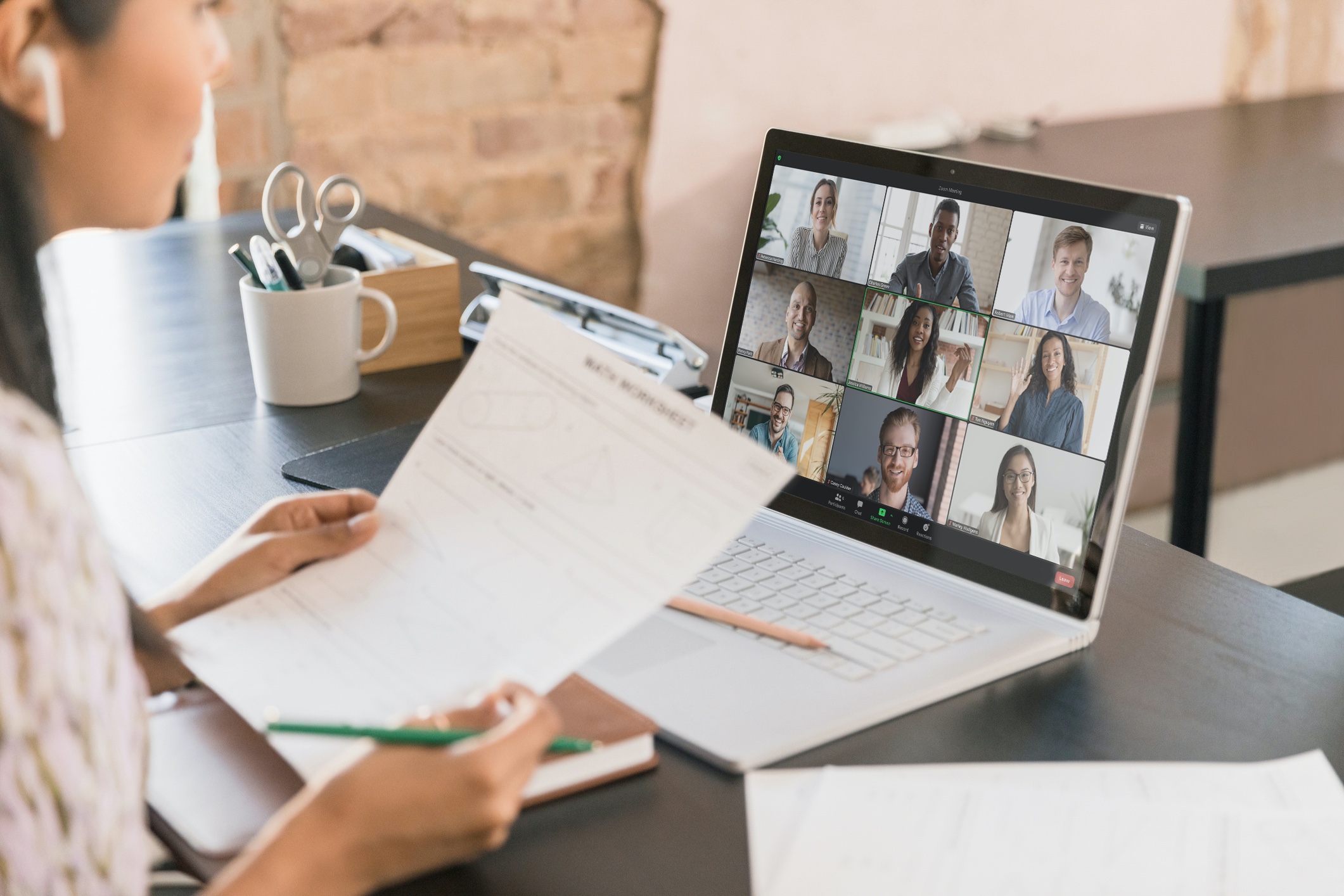
Rearranging the Gallery View can be handy for teachers to create a virtual seating chart for their students. Now, you can save the Gallery View order for use in future class sessions. In a future session, that custom Gallery View order can be reloaded and participants' videos will be arranged in the saved order, with any new participants appearing in the bottom-right corner.
When you save a Gallery View, it is tied to a specific Zoom meeting ID. You can set up recurring meetings, which will use the same meeting ID and settings, to schedule all sessions of a particular course in a semester. If you set up a different recurring meeting series for every course you teach, you will be able to save a unique Gallery View for each course.
Note that in order to use this feature, authentication is required and you will need to enable “Allow host to save video order” in your account settings.

Many educators shared that they had trouble getting students to turn their cameras on during remote classes, which made it difficult for them to gauge classroom engagement. Focus Mode was developed based on educator feedback to allow instructors to see all students’ videos, while only allowing students to see their teacher. Not only does this promote educational equity by helping all students feel comfortable, it also reduces visual distractions from classmates.
You can even schedule meetings to start in Focus Mode, which can offer an ideal environment for proctoring exams or other situations where you want to eliminate distractions.
If you don’t see the option for Focus Mode (by clicking the “More” icon on the meeting toolbar), you may need to enable this feature in your account settings.

Polling has long been a valuable feature for educators to enhance student engagement, measure the group’s understanding of a subject, and add an element of interactivity to virtual learning.
We’ve expanded our polling capabilities to include eight different question types, plus the ability to add images, which gives instructors even more flexibility with how they design their lessons. Feel free to get creative with these options:
You can also set up polls as quizzes, meaning you can assign a correct answer for every question and score students’ accuracy.
If you want to know more about any of these features, or want to share how you’re approaching the new semester, check out our Zoom Education Community. You can connect with educators from around the world or get your question answered by a Zoom expert.