What is a virtual classroom? Tips to set one up
From leveraging the right tech to supporting secure online classes, keep reading for some best practices for creating your virtual classroom.
Updated on March 07, 2023
Published on August 11, 2021
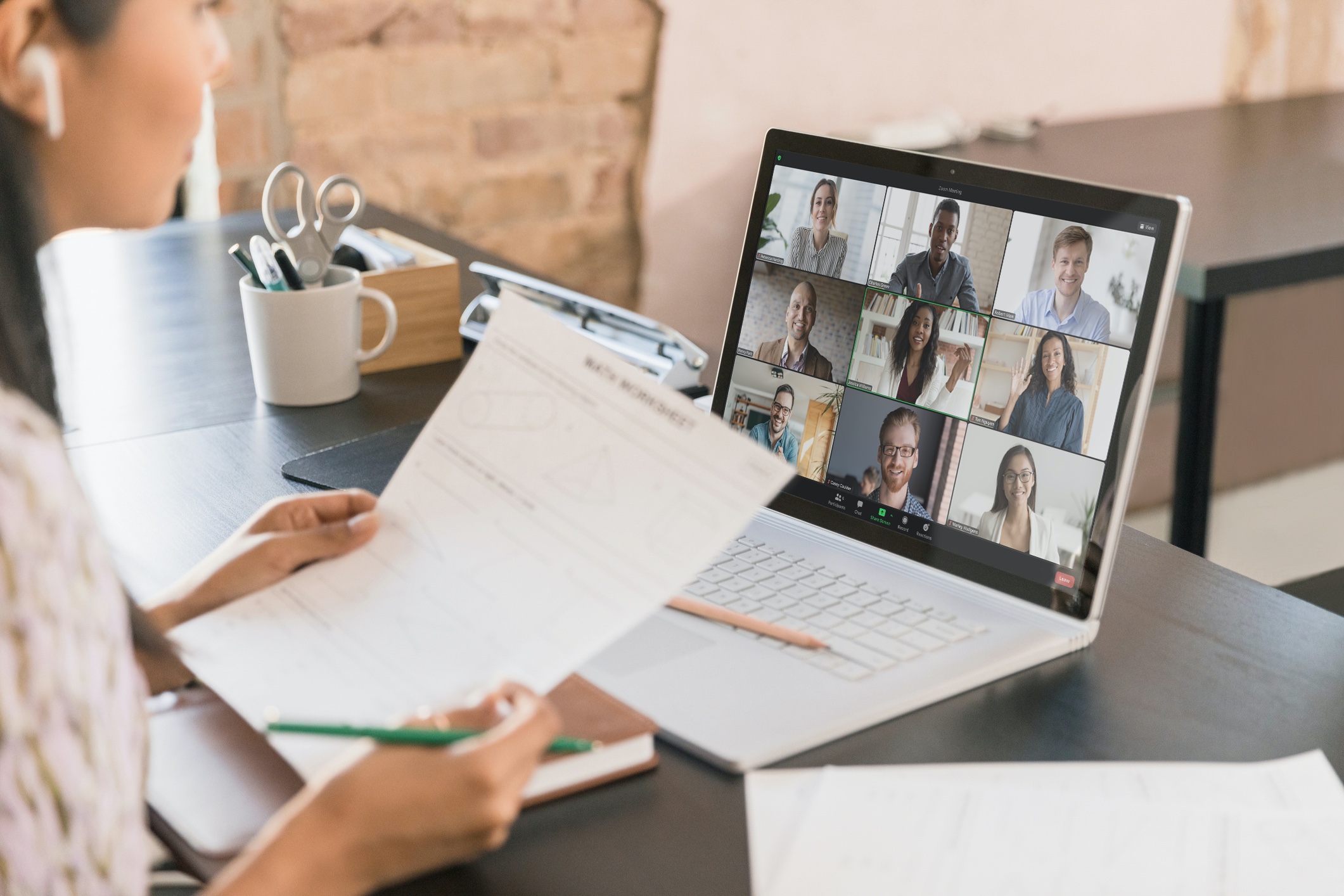
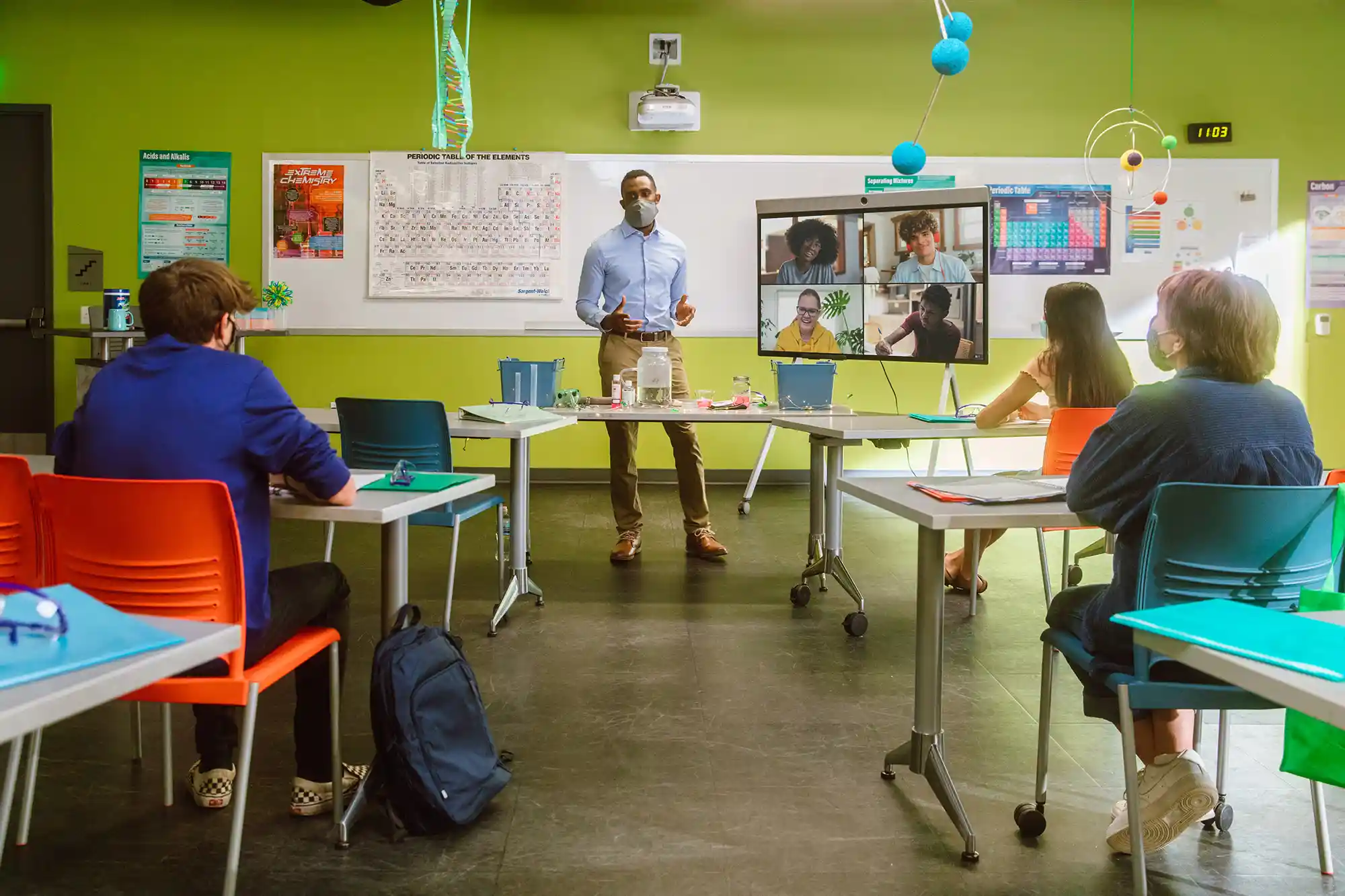
This school year, many schools and institutions are offering flexible options for in-person or remote learning. Because of that, back-to-school preparation may look a little different — instead of shopping for backpacks or going over bus schedules, your student may be learning how to join a Zoom class session or log on to their school’s learning management system (LMS).
Here are a few tips for helping your young learner get ready to go back to school in a virtual or hybrid classroom.
Designating a space for schoolwork can help your child get into the right mindset when learning from home. Help your student set up a dedicated spot for studying and joining Zoom class sessions. It can be anywhere in your home, but ideally, it should be quiet and distraction-free.
Also clear off a shelf or find a box or bin where your child can store school stuff out of sight until the next day, especially if their learning space is in a communal area like a kitchen or living room. This helps reduce clutter and allows your child to “leave the classroom” at the end of the day, creating some separation between school and home.
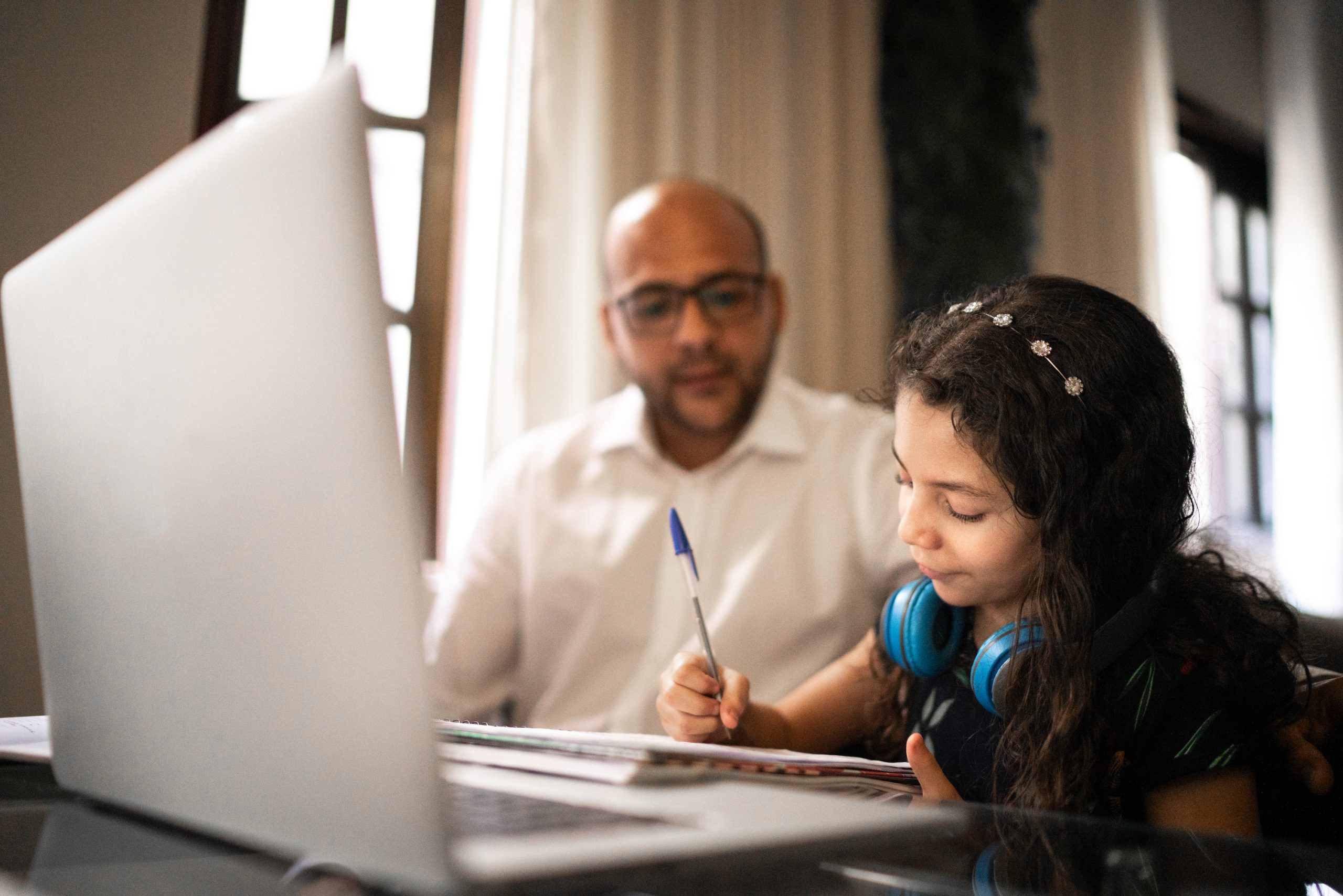
Once you and your child have selected a learning space, you can help them feel comfortable interacting in their virtual classroom.
We’ve also got a new feature, Focus Mode, that your child’s teacher might introduce in class to help students stay attentive. Focus Mode allows educators to see their students’ videos, and students to see their teachers without seeing other class participants. With this feature, teachers can supervise their class, but students won’t be distracted by their peers’ video feeds or feel self-conscious about turning on their own camera.
If your child is attending classes virtually, video quality is hugely important to helping them feel connected to their classmates and the lesson. Here are a few ways you can improve and optimize their video experience.
Chromebooks are a popular device for schools, and we just released a new Zoom for Chrome progressive web application (PWA). The PWA improves the Zoom experience for Chromebook users, giving them access to even more Zoom features on Chrome OS devices.
To use it, you’ll need to find the PWA on the Google Play store and install it on your Chrome OS. Check out our blog to learn more about how to use Zoom on a Chromebook with our PWA.
Your child may use Zoom for video calls with friends and family, but they may not be familiar with features like Breakout Rooms, nonverbal feedback like “Raise Hand,” or annotation tools. Check out our Parent and Student’s Guide to Using Zoom for Learning for an overview of these features and how they might be used in the classroom. You can also help your child feel comfortable logging into their school’s LMS and figuring out how to join their Zoom class.
Our guide for parents and students offers useful tips for getting started with Zoom for Education. Find the information you need to help your child prepare for a successful school year with Zoom!