Zoom Workplace

Your guide to getting started with Zoom Canvas [2026]

Descubra Zoom Canvas con características de IA: siga nuestros consejos para crear documentos colaborativos utilizando resúmenes y transcripciones de reuniones, plantillas y mucho más.

7 min de lectura

Publicado el 5 de agosto de 2025

Marcador de posición de imagen
Robin Bunevich
Robin Bunevich
Gerente de Marketing de Producto de Zoom AI

Robin Bunevich es directora de Marketing de Producto en Zoom. Supervisa la estrategia y el marketing de producto de Zoom AI. Después de tres años al frente del marketing de los productos de Soluciones de Eventos de Zoom, y de lanzar uno de los productos de más rápido crecimiento en Zoom, Zoom Events, ahora se dedica a ayudar a las organizaciones a adoptar la IA perfectamente en sus flujos de trabajo. Antes de incorporarse a Zoom, dirigió el marketing de eventos en directo en The New York Times, y contribuyó de forma decisiva a la transición de la organización a un programa de eventos totalmente virtual en marzo de 2020. En Zoom, Robin aporta sus más de 15 años de experiencia en marketing y publicidad para impulsar el conocimiento y la adopción de las soluciones de IA de Zoom.

Get to know Zoom Canvas — the next evolution of collaborative documentation in Zoom Workplace. Follow our guide to create, customize, and automate your work with AI-first docs, wikis, tables, and forms that help you move faster and smarter.

The way we work is changing — again. Documents are no longer static files that live in folders or get lost in email threads. They're living, collaborative spaces where ideas form, decisions happen, and work gets done.

But today's teams need more than a blank page. You need a workspace that can capture insights from your meetings, summarize discussions, and turn them into actionable plans — instantly. You need a tool that's flexible enough for any project, smart enough to automate the busywork, and connected enough to keep your team aligned.

That's where Zoom Canvas comes in.

Turn conversations into collaborative docs — instantly.

Cree su primer documento

Visite docs.zoom.us o haga clic en la pestaña Docs de la aplicación Zoom Workplace para empezar a crear un documento.

What is Zoom Canvas, and what can you do with it?

Zoom Canvas is an AI-first workspace for creating and collaborating on docs, wikis, tables, and forms — all within Zoom Workplace. It's built to help teams move from discussion to documentation to action without missing a beat.

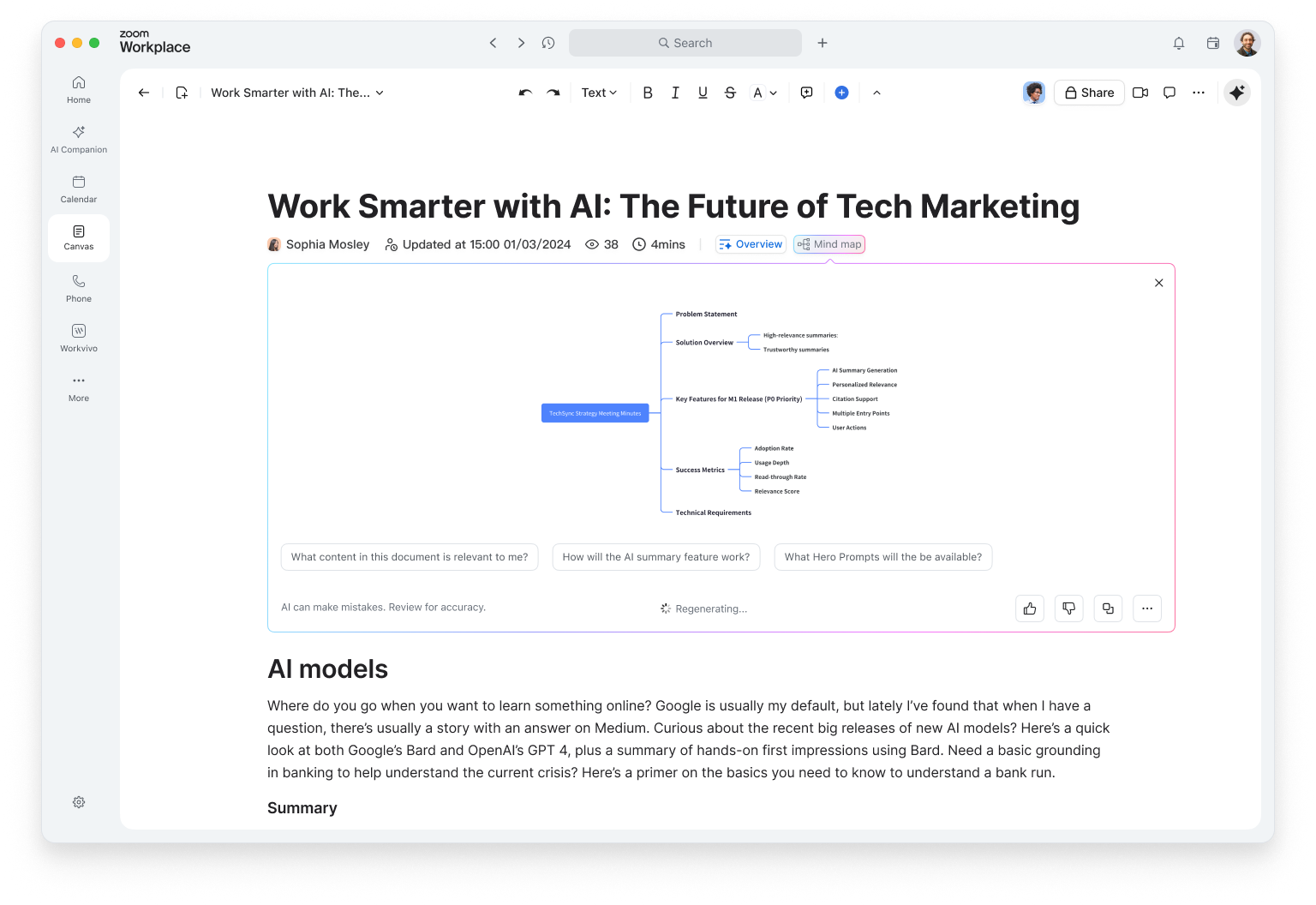
Canvas includes built-in AI features that help you generate, summarize, and refine content. Whether you're drafting a brief, capturing meeting notes, or building a project tracker, intelligent features help you start with context, not a blank page.
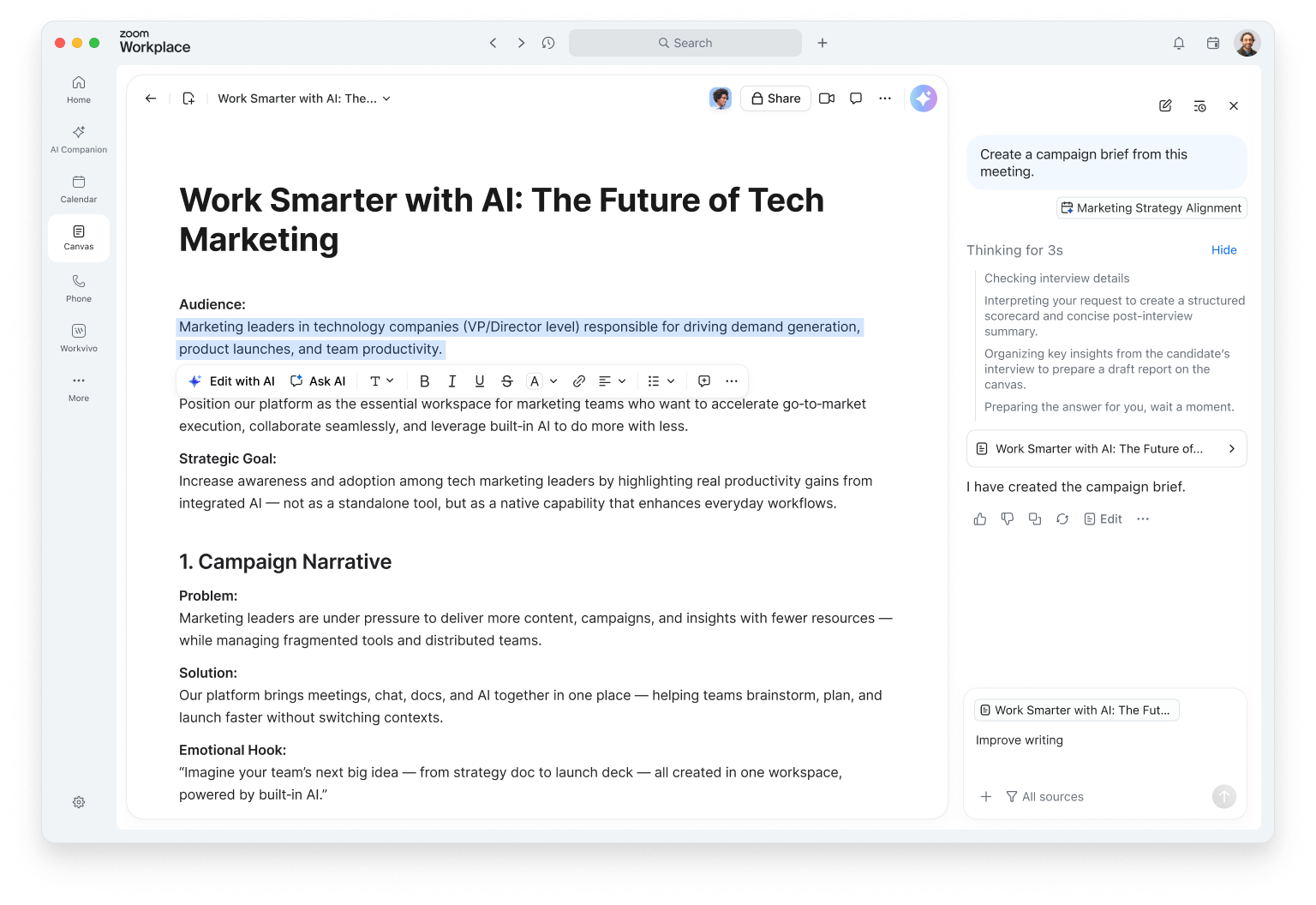
Cree documentos de colaboración centrados en la IA

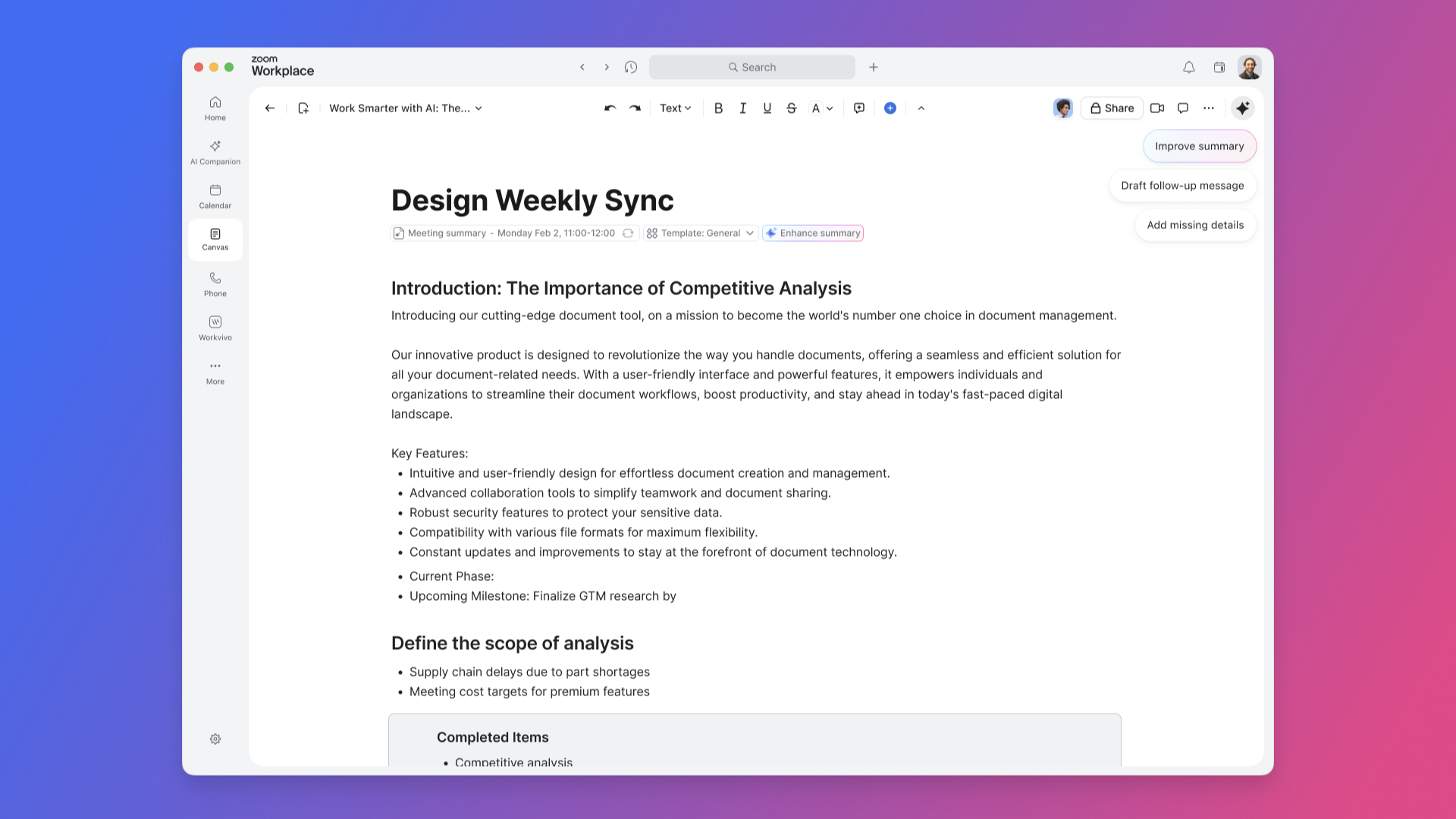
Write, brainstorm, and plan in one place. Use Writing Mode to focus on your ideas while Zoom Canvas helps you structure your thoughts, improve clarity, and even suggest next steps. You can pull in meeting summaries or transcripts directly from Zoom Meetings to generate a project brief or recap automatically.

Tag teammates to assign tasks, leave comments, or co-edit in real time — even during a meeting. With AI-first task management, you can turn action items into trackable tasks that update automatically as work progresses.

Build wikis and knowledge hubs

Keep your organization's knowledge in one searchable, structured place. Create a company wiki with nested pages, clear navigation, and granular sharing controls. Zoom Canvas can help summarize long sections, generate quick-reference guides, or suggest related pages to link.

Whether it’s onboarding materials, process documentation, or product FAQs, your wiki stays up to date and accessible to everyone who needs it.

Organize data with tables and forms

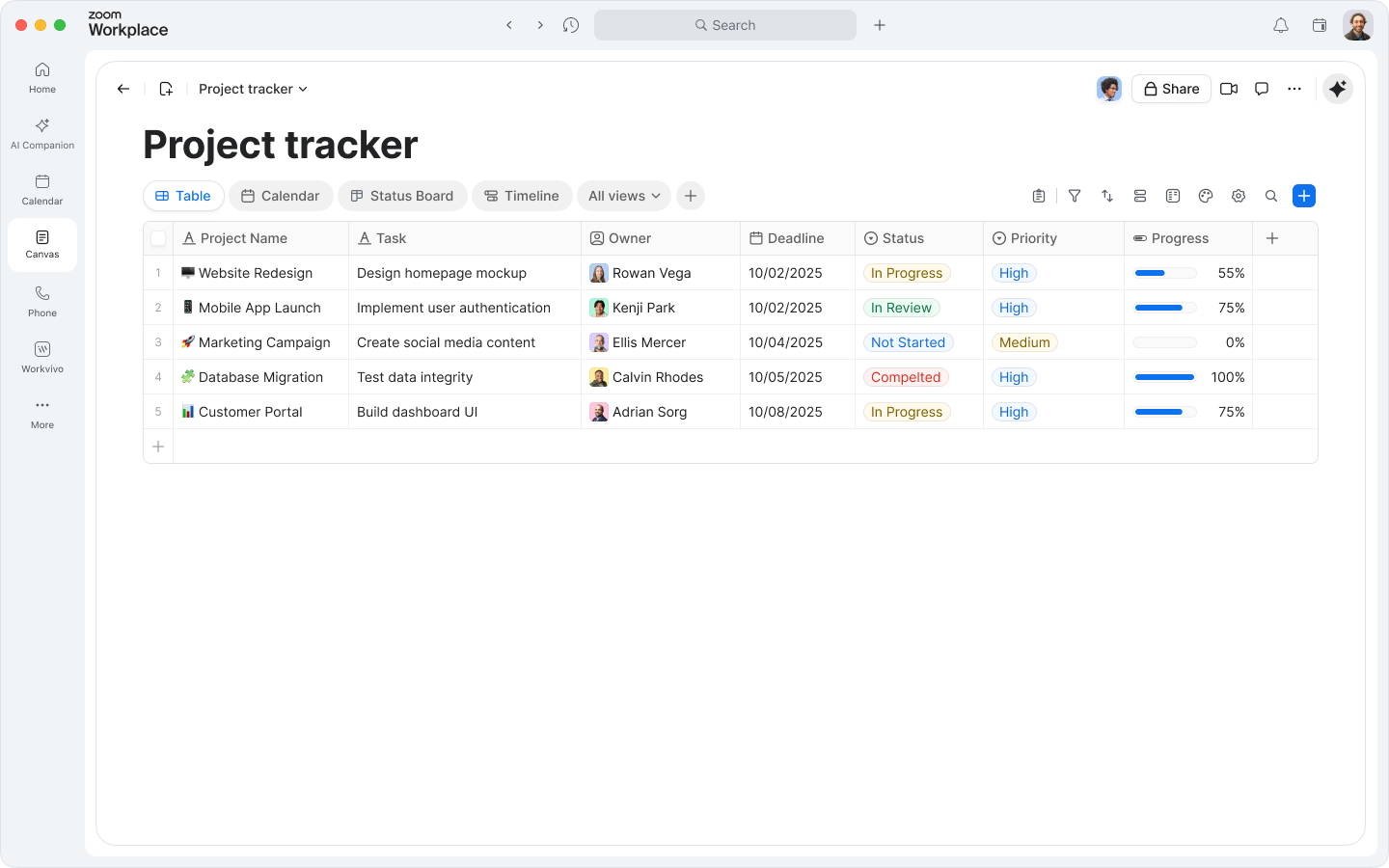
Zoom Canvas goes beyond text. Use data tables to track goals, projects, or customer feedback — and switch between table, board, or calendar views to visualize progress.

Need to collect information? Create forms directly in your doc to gather inputs from teammates or customers. Responses automatically populate your tables, so you can analyze and act on data without switching tools.
Integrate with My Notes

Your personal My Notes are now part of the experience. Capture quick thoughts or meeting highlights, then convert them into full docs with a single click. Zoom Canvas can expand your notes into structured outlines or polished drafts, helping you move from idea to execution faster.


How to create a new doc in Zoom Canvas

Creating your first doc is simple — and smarter than ever.

In the Zoom Workplace desktop or mobile app, go to the Canvas tab. You'll see all the docs you've created or collaborated on, plus options to start something new. All your docs live in Zoom Hub, alongside your meeting summaries, recordings, whiteboards, and clips.

Here are a few ways to get started:

Cree un documento en blanco

Choose “Blank document” from the Canvas home page to start from scratch. Then, use Writing Mode or ask Zoom Canvas to help you brainstorm, outline, or draft your content. You can even prompt it with context like “create a project plan based on our last meeting.”

Create from a meeting

In the "My meetings" view, select a past meeting to automatically generate a doc. You can use your meeting summary or transcript to create a recap, project brief, or next-step tracker. Your meeting summary or transcript can be used to create a recap, project brief, or next-step tracker.

Create a doc during a meeting

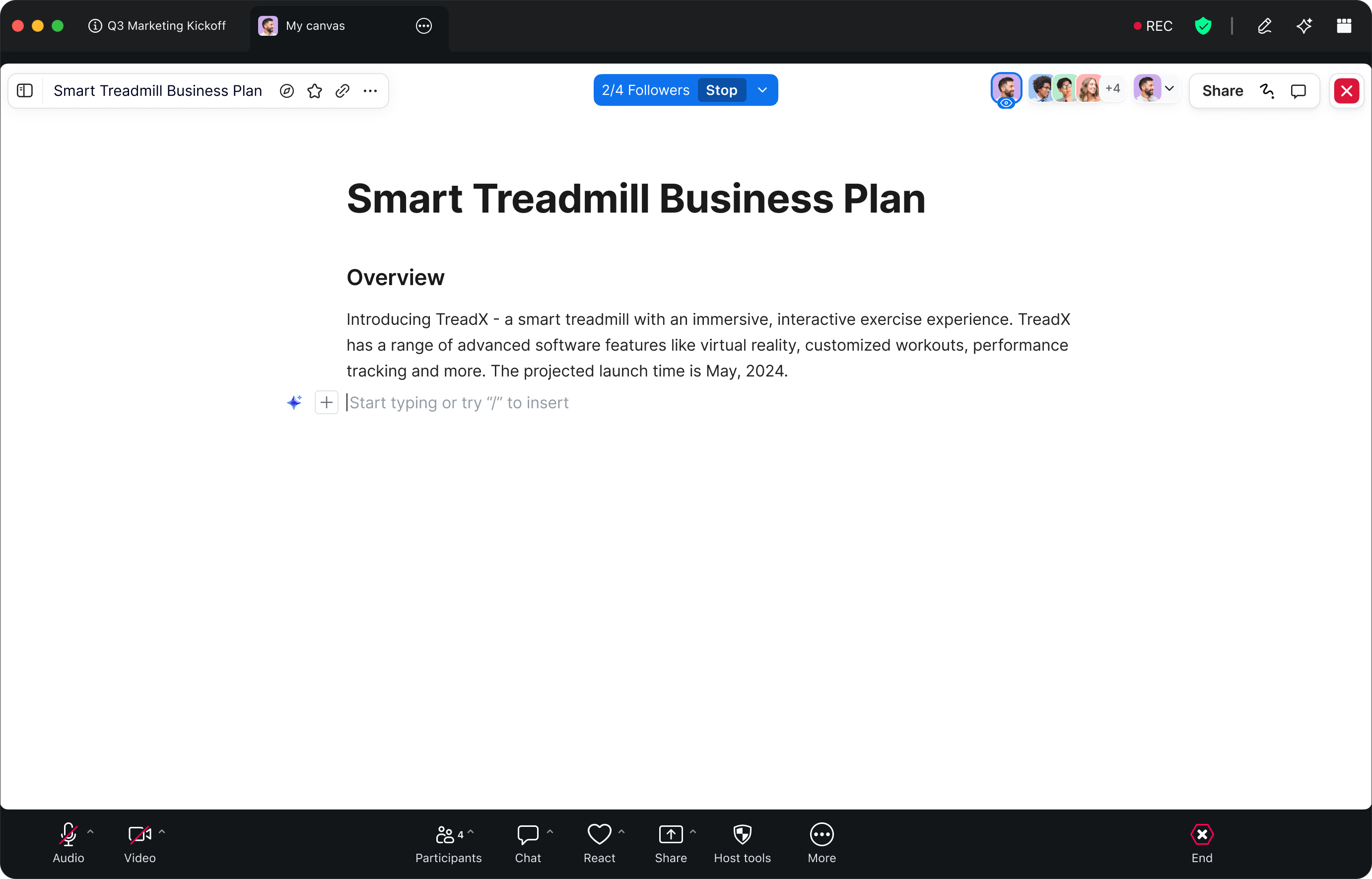
Need to capture ideas in real time? Click the Canvas icon in your meeting toolbar to open or create a doc right inside your meeting. Collaborate live with participants, co-edit content, and let Meeting Summary capture key points as you go. After the meeting, your doc is saved automatically in your Docs tab.

Start with a template

Zoom Canvas includes a growing library of templates to help you move faster. Choose from:

  • Project Tracker – Plan and monitor deliverables
  • Lightweight CRM – Manage leads and customer interactions
  • Brainstorm Meeting – Capture ideas and prioritize next steps
  • Content Calendar – Plan campaigns and publishing schedules
  • Meeting Agenda – Keep discussions focused and actionable
  • User Research Tracker – Organize insights and feedback

Each template is fully customizable — add tables, forms, or automation to fit your workflow.

Import existing files

¿Ya tiene contenido en otro sitio? Importe archivos de texto o hojas de cálculo (.docx, .txt, .md, .xlsx, .csv) para transformarlos en documentos colaborativos de Zoom Canvas. Una vez importados, puede mejorarlos con las características de IA integradas, añadir componentes interactivos y compartirlos al instante con su equipo.

Personalice, organice y despierte su creatividad

After your doc is started, make it your own. Zoom Canvas is designed to be flexible, visual, and collaborative.

Add and arrange content blocks

Click the plus sign (+) or type a forward slash ( / ) to insert new blocks — headings, lists, images, videos, whiteboards, or embedded media. You can even embed a Zoom Whiteboard directly into your doc to keep brainstorming and execution in one place.

Visualize your data

Switch between data views like table, board, calendar, and more to see your information from different angles. You can use AI features in Zoom Canvas to help categorize entries, summarize data, or highlight trends automatically.

Use forms for input and feedback

Add a form block to collect responses from teammates or customers. Whether it’s a feedback survey, event registration, or internal request form, submissions feed directly into your tables for easy tracking.

Automate and connect

Use Workflows to link your docs with other Zoom Workplace tools. For example:

  • Automatically create a follow-up doc after a meeting ends.
  • Notify a team in Zoom Chat when a form response is received.
  • Generate a task list from meeting action items.

These automations keep your work moving — no manual copy-paste required.

Publish and share

When your doc is ready, share it with collaborators or publish it as a webpage with a unique link. Control who can view, comment, or edit. You can even embed published docs in your intranet or share them externally for broader visibility.

Above all, experiment. Move blocks around, try new layouts, and let Zoom Canvas help you refine your content. Zoom Canvas adapts to how you work — not the other way around.

Account admins: How to turn on AI Companion for Zoom Canvas

Zoom Canvas is included with eligible Zoom Workplace paid accounts as part of the Zoom AI Productivity Suite. For full access to all AI features in Zoom Canvas, get ZoomMate — the best way to use AI in Zoom Workplace.

ZoomMate brings together the entire Zoom AI Productivity Suite alongside everything else you need to turn conversations into finished work. Both ZoomMate and the Zoom AI Productivity Suite are now available for purchase and include AI Credits for metered AI actions.

¿Listo para comenzar?

Why teams love Zoom Canvas

  • AI-first design: Built from the ground up to help you move from idea to action.
  • Seamless collaboration: Work together before, during, and after meetings.
  • Flexible structure: Docs, wikis, tables, and forms — all in one place.
  • Automation built in: Automation handles the repetitive work so you can focus on what matters.
  • Connected to Zoom Workplace: Everything you need to communicate, plan, and execute — together.

Certain AI features are available with eligible paid Zoom Workplace plans. Availability may vary by region or industry vertical. AI features for Zoom Canvas are not included in Zoom Basic plans. Please note that availability may vary by customer type, region, and industry vertical at launch, with broader rollout expected throughout the year.

Nuestros clientes nos prefieren

Okta
Nasdaq
Rakuten
Logitech
Western Union
Autodesk
Dropbox
Okta
Nasdaq
Rakuten
Logitech
Western Union
Autodesk
Dropbox

Zoom: una plataforma para conectar